
 Português
 Deutsch
 English (UK)
 Español
 Français
 Italiano
 日本 (日本語)
 中国大陆 (简体中文)
Fiery FS800 Pro/FS800
What’s new product guide for Fiery servers driving cutsheet presses
Introduction
Fiery FS800 Pro introduces powerful new capabilities that make it easier to achieve exceptional color, streamline production workflows, and make informed business decisions. From AI-powered object-level editing and advanced spot color management to enhanced estimation tools and workflow automation, FS800 Pro helps print providers work more efficiently while delivering consistent, predictable results.
With FS800 Pro, you can:
- Make AI-powered, Photoshop-style object edits directly on RIPped files
- Achieve exceptional color and spot color accuracy with less effort
- Make smarter, data-driven pricing decisions
- Minimize waste and avoid unnecessary production costs
- Spend less time on setup and more time producing jobs
- Strengthen security, reliability, and operational confidence
Platform differences
Fiery FS800 Pro is available for Windows-based servers (NX Series), and Fiery FS800 is available for Linux-based servers (E-series or LX Pro). The term Fiery FS800 Pro is also used as a general reference to the software at a system level.
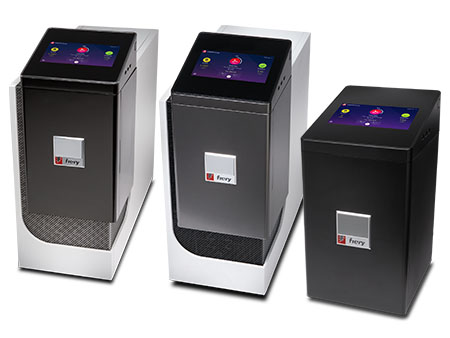 | 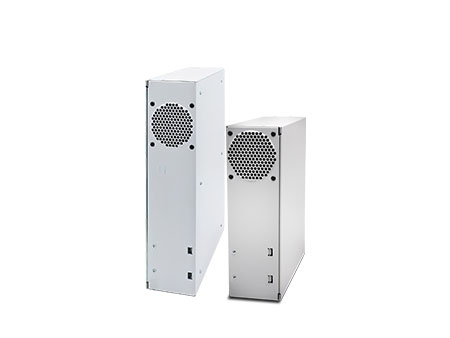 |
Windows-based servers (NX Series) run Fiery FS800 Pro system software | Linux-based servers (LX Pro, E-Series) run Fiery FS800 system software |
Availability
Each feature indicates its availability on a specific platform (Windows-based or Linux-based), and if it is standard or optional.
Availability | Definition |
Standard | Available by default |
Optional | Requires a paid license to enable |
N/A | Not available |
Check Fiery server materials to confirm support | Available on a product-specific basis. Confirm availability in the respective datasheet or feature matrix. |
New features by innovation area
Color & Imaging | Productivity | Management | Connection |
|
|
|
|
Reliable | Secure | ||
|
| ||
* Only available on Windows-based servers
Note: Features may vary by printer model. Please refer to the individual product datasheet or feature matrix to find out exactly which features are available.
Features in italics are included with Fiery Command WorkStation 7.3. Learn more
This version launches in select English-speaking regions on October 7 and worldwide on November 11.
Access new features
Update to the latest version of Fiery Command WorkStation to unlock new capabilities and maximize the value of your Fiery server investment.
Visit the product page for more details.
Color & Imaging
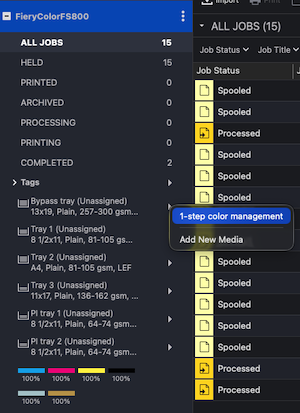
1-step color management enhancements
Operators can now use any supported handheld, scanning, or inline instrument to perform 1-step color management. Initiated directly from within Fiery Command WorkStation, 1-step color management streamlines the media calibration and profiling process into a single step. Operators no longer need to switch between applications or have specialized knowledge to create and maintain custom media profiles, making it easier to achieve the most accurate color results.
For a list of supported instruments visit the spectrophotometers web page on fiery.com.
Why this matters:
1-step color management reduces many barriers to creating custom media profiles, and making this capability standard across all supported instruments further enables users to achieve more accurate results more easily.
Availability:
Windows-based servers | Requires a supported handheld, scanning, or inline measurement instrument Check Fiery server materials to confirm support Requires a Fiery Color Profiler Suite license or server key |
Linux-based servers | Requires a supported handheld, scanning, or inline measurement instrument Check Fiery server materials to confirm support Requires a Fiery Color Profiler Suite license or server key |
Printer marks in K only
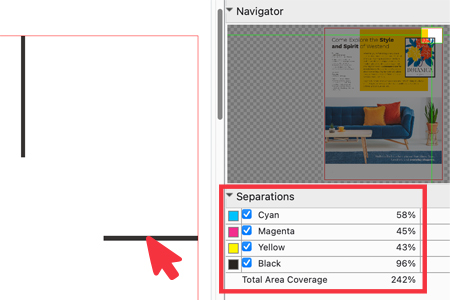
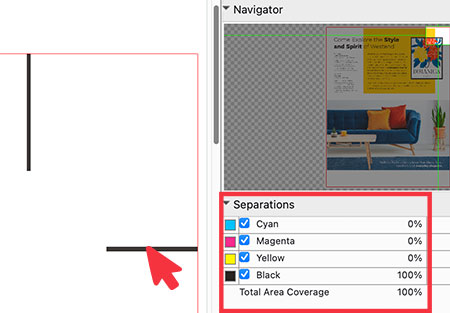
Application-generated printer marks now output as black (K) only, even when they are set to print on all separations. This prevents marks from unnecessarily triggering additional color clicks or ink usage on pages that would otherwise contain only black content.
Why this matters:
Outputting printer marks in K only helps reduce color clicks and ink consumption on black-only pages, lowering operating costs without affecting print production.
Availability:
Windows-based servers | Standard |
Linux-based servers | Standard |
Fiery ImageViewer Object Editor
Make object-level color corrections in the Fiery workflow
Fiery ImageViewer Object Editor introduces AI-powered, object-based color editing. Operators can select individual objects within a print job and apply color adjustments only where they are needed, without affecting surrounding content or returning to design applications.
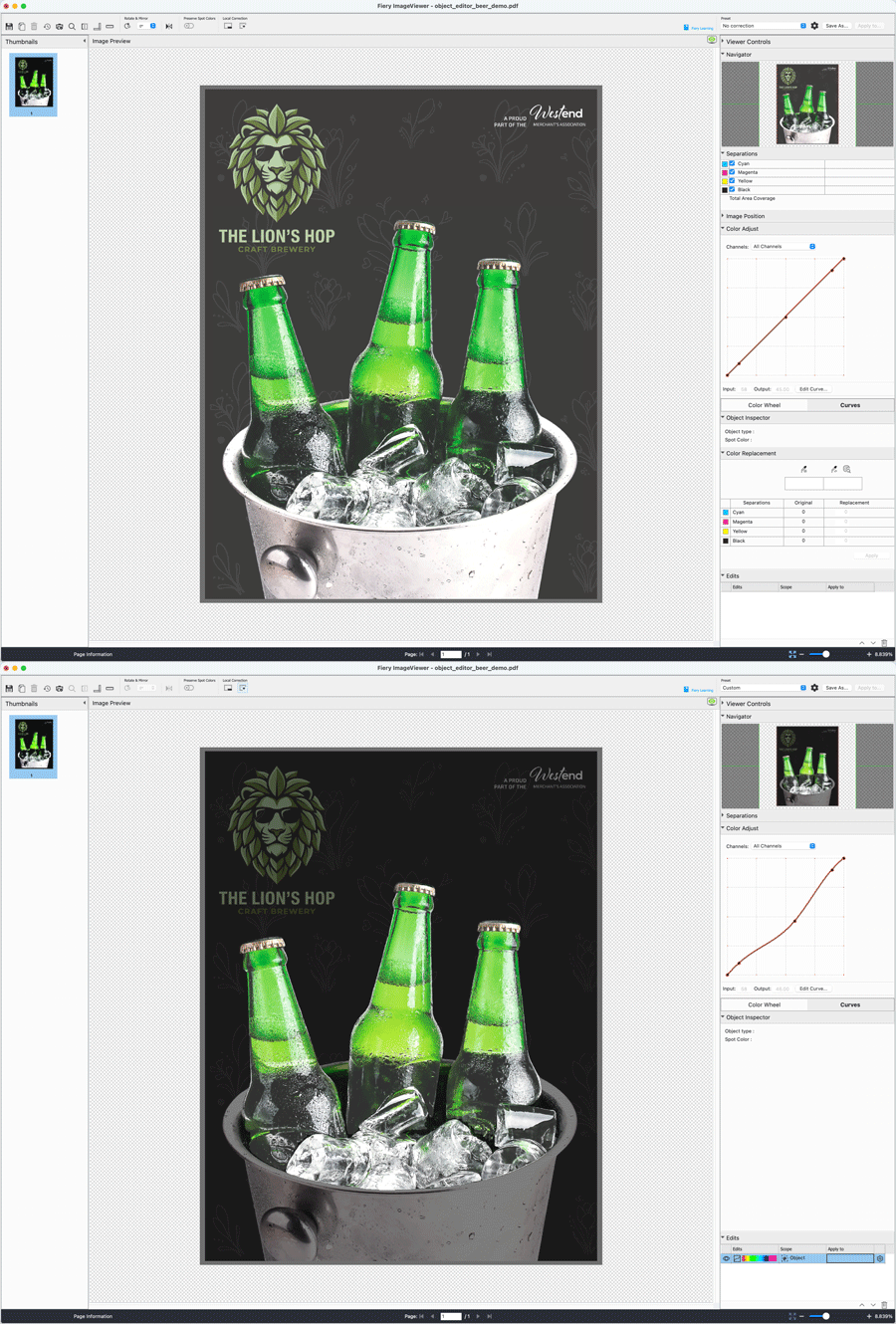
The patented Object Editor uses AI-driven segmentation to automatically detect and mask objects on a page. Operators can select an object with a single click, make targeted color edits, preview the result immediately, and quickly and easily refine. Multiple objects can be selected at once, and selections can be inverted for faster editing of complex pages. A single object-based edit can be applied per page and may include multiple selected objects, making it easy to apply the same correction across related elements.
AI processing runs entirely on the client system with no cloud connection. This helps keep customer job data secure while delivering predictable performance in production environments.
Photoshop-style editing
Many object-level corrections that traditionally required design applications such as Adobe Photoshop can now be performed directly in Fiery ImageViewer. Object Editor brings Photoshop-style automatic object selection and targeted color editing capabilities, enabling operators to make sophisticated object-level corrections without leaving the Fiery workflow.
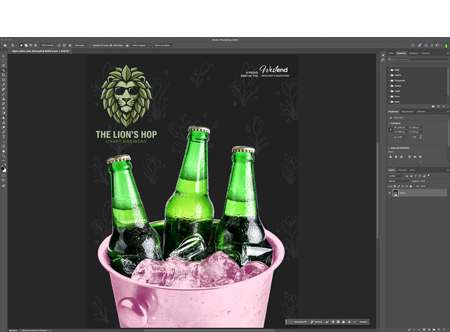
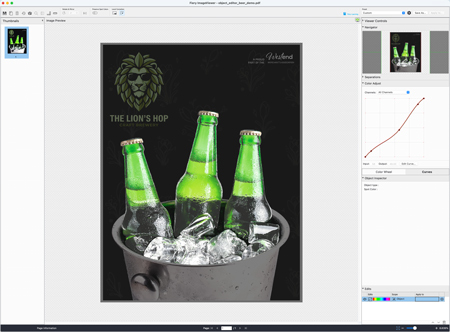
Before: open in design application → edit objects → save → export to PDF → re-RIP → iterate again if needed → re-RIP → print
Now: edit objects directly in ImageViewer → print
By integrating object-editing capabilities directly into ImageViewer, Fiery reduces dependence on external design applications and specialized prepress expertise. Common production corrections can be completed in seconds, helping streamline workflows and keeping production moving smoothly.
From page-wide adjustments to object-level precision—no re-RIP required
With the introduction of Object Editor, you can now apply color edits to the raster (RIPped) file at three different levels within ImageViewer, with no need to re-RIP before printing.
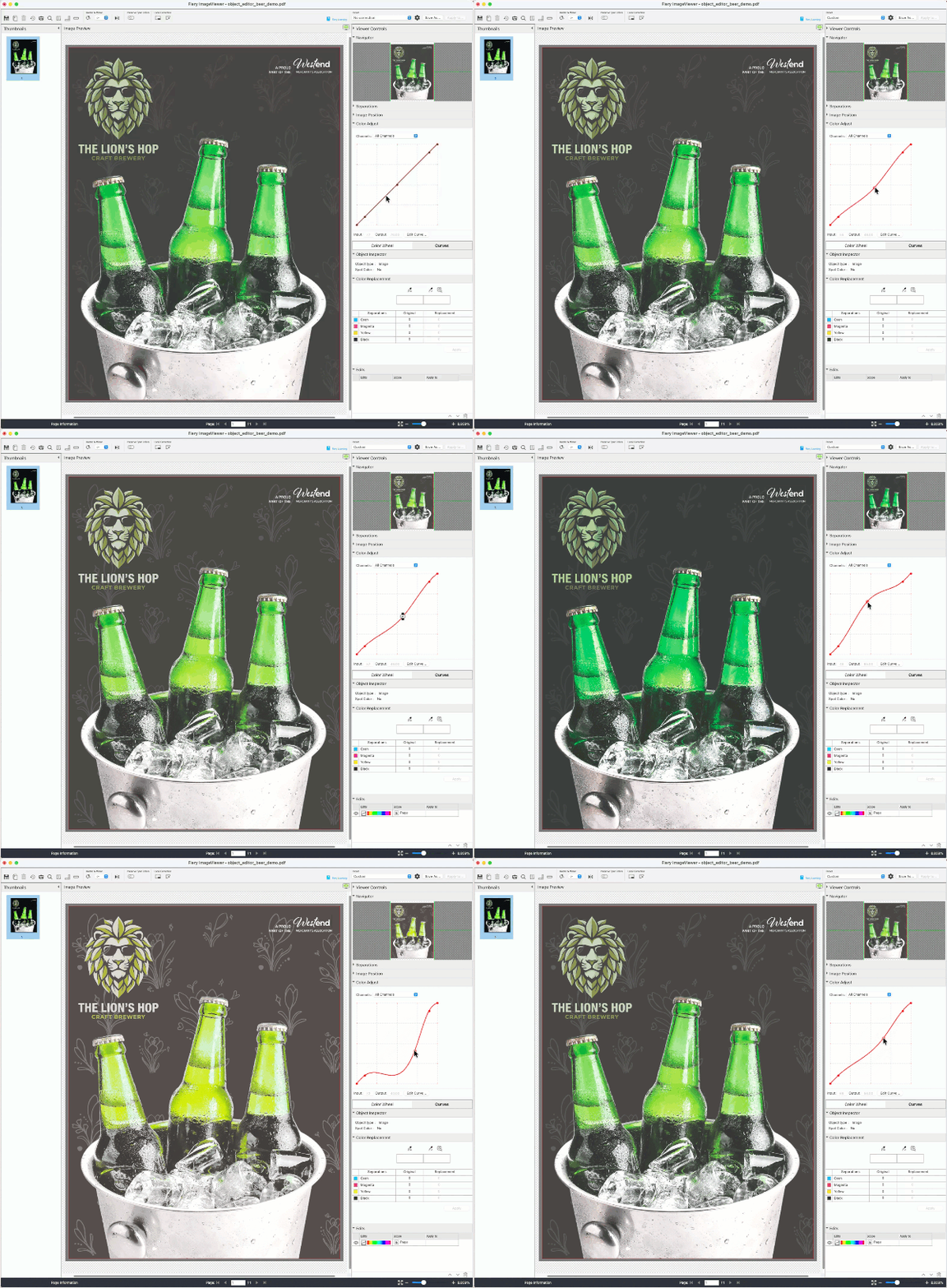
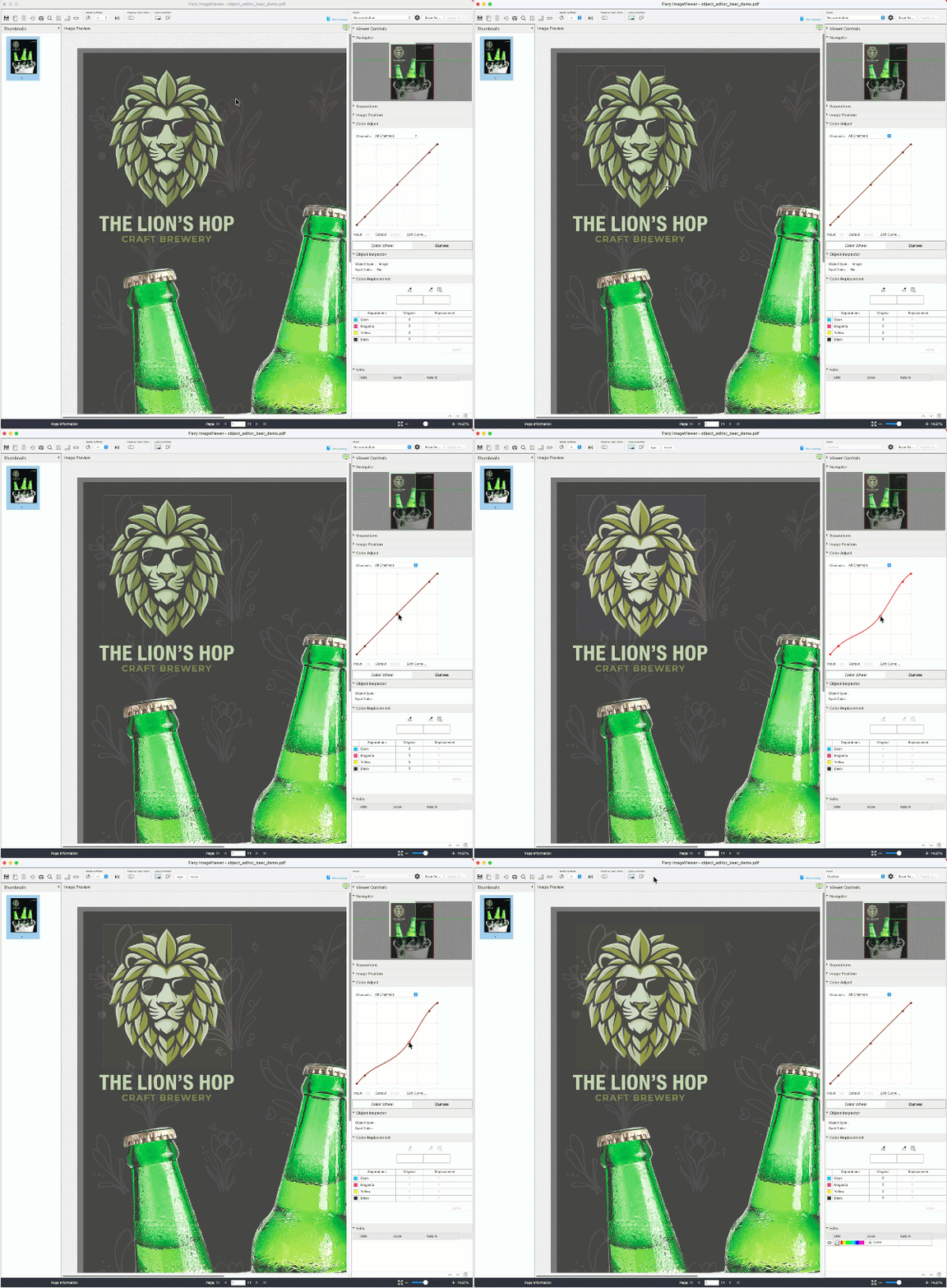
Global edits
Adjust curves or replace colors across a whole page or job.
Note how all colors on the page change when the curve is adjusted.
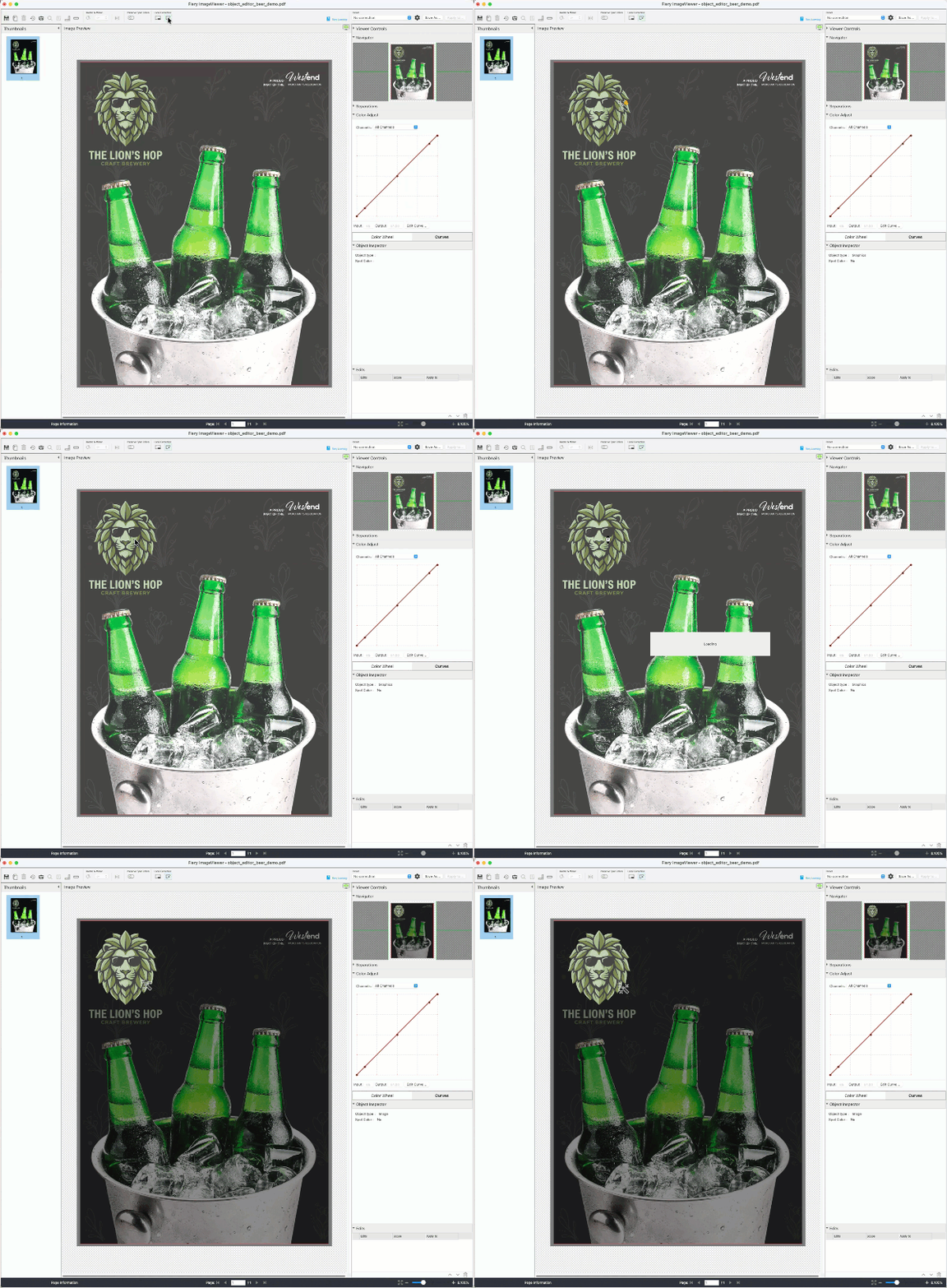
Local edits
Apply corrections to a specific area of a page.
Note how the lion logo and the background contained in the selection area change when the curve is applied.
Object-based edits (new)
Automatically detect objects and adjust only the selected content.
Note how only the lion head is selected for color adjustment.
Apply a single object-based edit per page to one or multiple selected objects
How to get Object Editor
Fiery ImageViewer requires a license for the Fiery Graphic Arts Pro Package (Windows-based servers) or the Fiery ColorRight Package (Linux-based servers). In addition, Object Editor requires Fiery Command WorkStation 7.3 or newer.
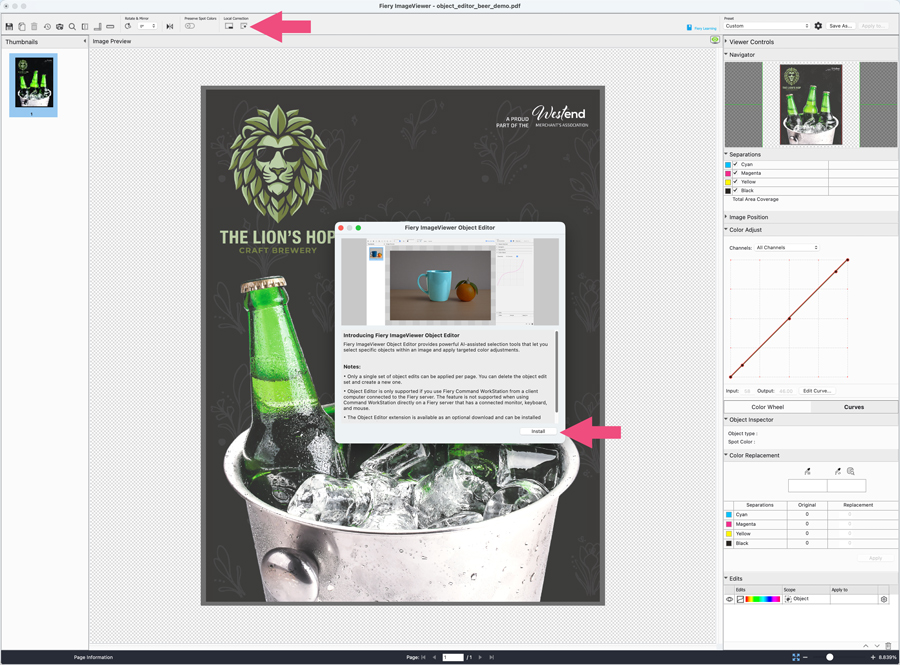
To enable Object Editor, click the Object Editor icon (magic wand) in the toolbar. Then click Install in the pop-up window.
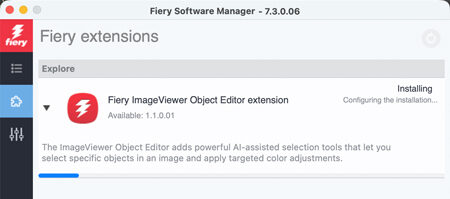
Fiery Software Manager will open and automatically install the Object Editor extension.
Object Editor is ready to use when the option is selected and the icon turns into a magic wand.
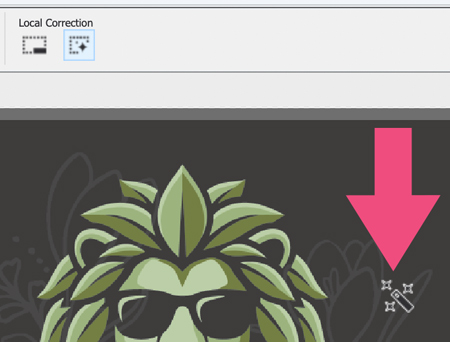
Note: Object Editor is not supported on Fiery Command WorkStation clients installed directly on a Fiery server.
Additional information:
For how-to videos and a link to a free eLearning course, visit the ImageViewer product page.
Keyboard shortcuts for object selection:
Windows | macOS | Description |
Left-click | Left-click | Select an object. |
Ctrl + Left-click | Cmd + Left-click | Select additional objects. |
Alt + Left-click | Opt + Left-click | Remove objects from the selection. |
Alt + I | Opt + I | Invert the current selection. Selected objects become unselected, and unselected objects become selected. |
C + Left-click | C + Left-click | Clear all selections. |
Shift + Left-click or Shift + Right-click | Shift + Left-click or Shift + Right-click | Add a positive point to the mask with Shift + Left-click, and add a negative point to the mask with Shift + Right-click. Positive points indicate areas that should be included in the object mask, and negative points indicate areas that should be excluded from the object mask. Positive and negative points help refine object boundaries when the initial object selection does not exactly match the area that you want to edit. Example: Consider an image of a person wearing a shirt. Clicking on the person may initially select the entire person as a single object. |
G + Left-click or W + Left-click | G + Left-click or W + Left-click | Select an object with object detection models specialized in graphics and font content. If one model does not produce a clean selection, use the alternative model. Try this when the cursor shows a warning icon while hovering over an object. |
Alt + K | Opt + K | Open the Mask edits window after object edits have been applied. |
Why this matters:
Last-minute color corrections often require operators to reopen files in external design applications, make edits, regenerate the file, and send it back through the workflow, turning what should be a simple change into multiple rounds of editing and verification.
Object Editor helps eliminate those extra steps by enabling targeted object-level corrections directly within ImageViewer, so even operators without prepress or design application experience can make sophisticated adjustments with confidence.
Availability:
Windows-based servers | Requires Fiery Graphic Arts Pro Package and Command WorkStation 7.3 or newer |
Linux-based servers | Requires Fiery ColorRight Package and Command WorkStation 7.3 or newer |
Fiery Spot Pro enhancements
Fiery Spot Pro introduces new tools to help operators manage spot color libraries more efficiently and confidently. Quickly identify customized spot colors, protect approved spot color recipes from unintended changes, and preserve preferred library views between sessions.
View modified spot colors
New status icons make it easy to see at-a-glance which spot colors and spot color libraries have been modified for a specific output profile.
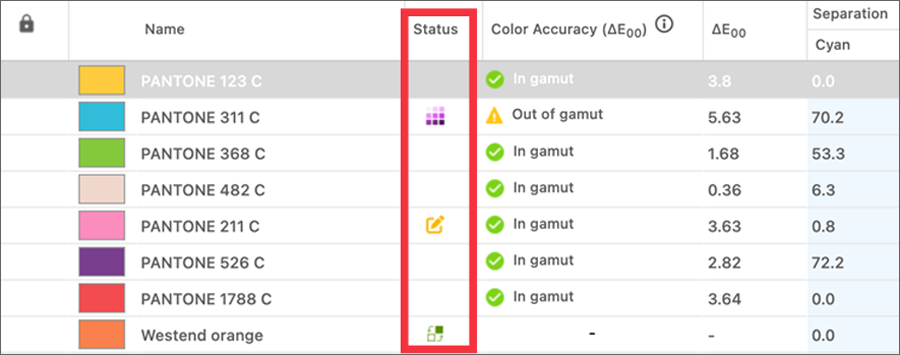
A new Status column uses icons to indicate how each spot color was modified for a given output profile.
Status | Icon | Definition |
Variation applied |  | Applied a recipe from a variation |
Single patch |  | Updated based on a measured color sample |
Manually edited |  | Manually adjusted L*a*b/LCH or CMYK values |
Optimized |  | Optimized for a specific profile |
Aliased |  | Mapped to another spot color |
Plan color customization more efficiently
Managing spot colors across multiple output profiles, printers, and media types can be time-consuming. With clear visibility into previous edits, operators can quickly identify which spot colors have already been optimized and which may still require attention.
This makes it easier to plan future color customization work and maintain consistent brand color reproduction across different printer and media combinations.
Why this matters:
Clear visibility into modified spot colors and libraries helps operators avoid duplicate effort, work more efficiently, and maintain consistent color across output profiles, resulting in a faster, more streamlined color management workflow.
Lock spot colors
Fiery Spot Pro provides multiple ways to achieve the desired spot color appearance, including manual adjustments, variations, optimization, and measured color values. Once a spot color has been configured and approved, it can be locked to preserve its intended appearance and prevent unintended changes. This helps operators manage large spot color libraries more efficiently by clearly identifying approved colors and focusing attention on colors that still need refinement.
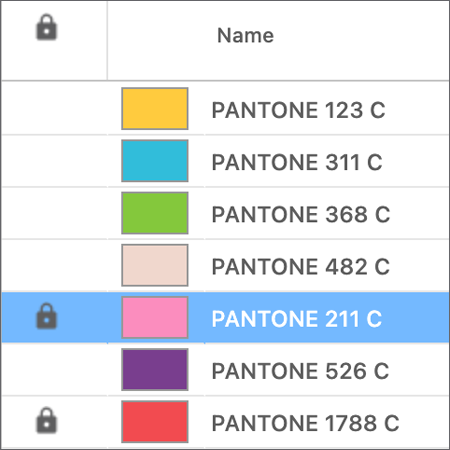
Why this matters:
Once a spot color has been approved, locking it helps preserve both the intended appearance and the customization work that went into creating it. This reduces the risk of unintended changes and gives operators greater confidence when managing large spot color libraries.
Sortable columns enhancement
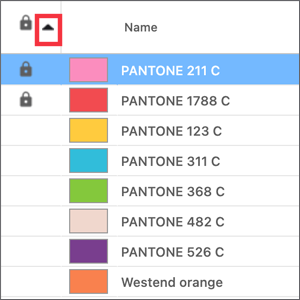
Spot Pro now remembers your column sorting preferences, preserving them each time you reopen the application. Whether you sort by Color Accuracy, Lock status, Name, or dE, your preferred view remains in place so you can immediately focus on the information that matters most.
Why this matters:
Once a spot color has been approved, locking it helps preserve both the intended appearance and the customization work that went into creating it. This reduces the risk of unintended changes and gives operators greater confidence when managing large spot color libraries.
Availability:
Windows-based servers | Requires Fiery Graphic Arts Pro Package |
Linux-based servers | Requires Fiery ColorRight Package |
Productivity
Fiery Smart Estimator enhancements
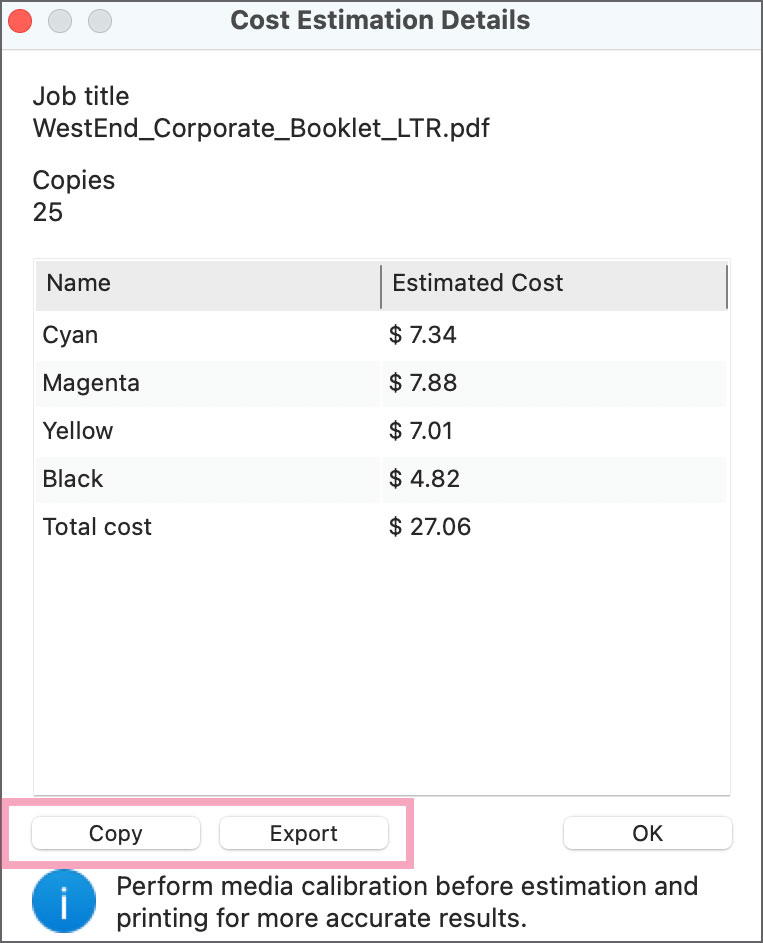
Accurate consumable cost estimates are critical for profitable production decisions. New Fiery Smart Estimator enhancements for supported servers help users generate estimates faster and share results more easily..
Operators using the server-based Fiery Smart Estimator may see, on average, up to 60% faster estimations on color jobs.
Estimation results can now be easily shared with customers by copying a clean, tabular view or exporting the data as a CSV file. This makes it faster and easier to communicate projected ink or toner usage and costs for quotes, planning, and customer discussions.
Note: exporting/copying estimation results requires Fiery Command WorkStation 7.3.
Why this matters:
Faster estimation and easier reporting help you make more informed pricing and production decisions while responding more quickly to customer requests.
Availability:
Windows-based servers | Check Fiery server materials to confirm support |
Linux-based servers | Check Fiery server materials to confirm support |
Management
Fiery PSA for Windows
Expected availability in Q1 2027
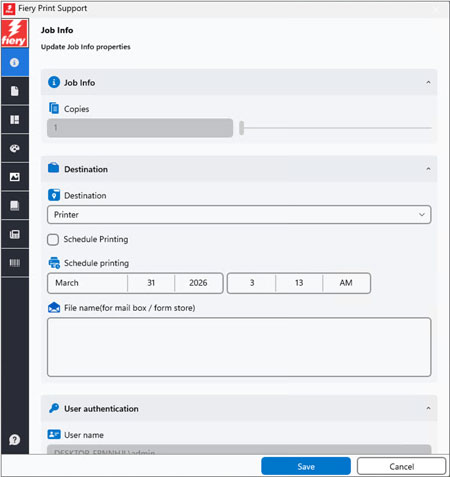
Fiery PSA (Print Support Application) for Windows brings Fiery capabilities into the modern Windows print experience. It is designed to replace the need for traditional Fiery print drivers in supported Windows workflows, while giving users a familiar way to submit and configure jobs from Windows applications.
Built on Microsoft’s IPP print architecture, Fiery PSA works with the standard Windows print flow. Users can select a Fiery-powered printer and access Fiery job settings — such as media, finishing, color, and other print options — directly from the Windows printing experience.
Users can download and install Fiery PSA directly from the Microsoft Store.
Why this matters:
Windows printing is moving toward IPP-based workflows and Windows Protected Print. In this model, Windows handles more of the core print connection, while PSAs provide printer-specific capabilities.
Fiery PSA provides a familiar print experience for users and a simpler path for IT teams to deploy, manage, and support printing across managed Windows environments.
Availability:
Windows-based servers | Standard (Fiery PSA must be downloaded from the Microsoft Store) |
Linux-based servers | Standard (Fiery PSA must be downloaded from the Microsoft Store) |
Smart page handling
New enhancements simplify pagination and help ensure pages print in the correct order when creating booklets or reprinting page ranges, delivering predictable output.
Simplified booklet pagination
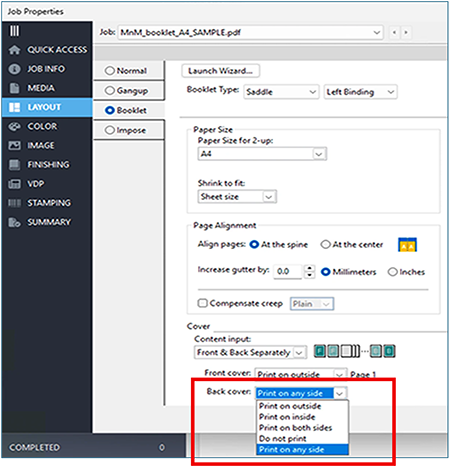
Booklet Maker now includes the “Print on any side” option for back covers. When a saddle-stitched booklet requires blank pages to complete the layout, Fiery automatically places those blank pages at the end of the booklet.
Operators no longer need to calculate page positions or determine how the back cover should be printed. Simply select the option and let Booklet Maker handle the pagination.
Why this matters:
Creating booklets should not require manual page calculations. By automatically placing any required blank pages at the end of the booklet, Booklet Marker simplifies setup, reduces pagination errors, and helps ensure consistent booklet output with less effort.
Reprint page ranges with correct pagination
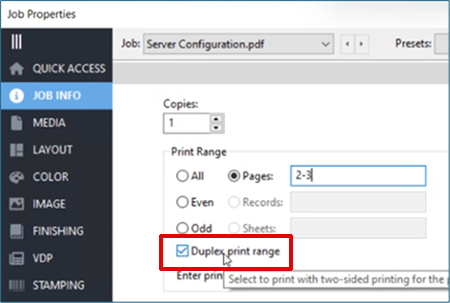
When reprinting selected pages from a duplex job, the new Duplex print range option gives operators more control over how the selected range is printed. By default, Fiery preserves the original duplex pagination, keeping pages on the same front or back side as the original job. When the operator selects Duplex print range, Fiery prints only the requested page range, even if that changes which pages appear on the front or back side of the sheet.
Original duplex job

Duplex print range OFF
Print range 2-3: maintains the front/back by printing additional pages, in this case pages 1 and 4.

Duplex print range ON
Print range 2-3: prints pages 2 and 3 only, now page 2 is the front-face.

For example, if a customer requests replacement copies of pages 2-3 from a previously printed duplex job, the operator can choose to preserve the original front-to-back layout (in this example printing pages 1-4), or print only the selected pages 2-3 as a duplex range.
Why this matters:
Reprinting pages should be flexible and predictable. The Duplex print range option gives operators better control over the reprint process so they can produce the desired output, and avoid wasted paper or rework.
Availability:
Windows-based servers | Standard |
Linux-based servers | Standard |
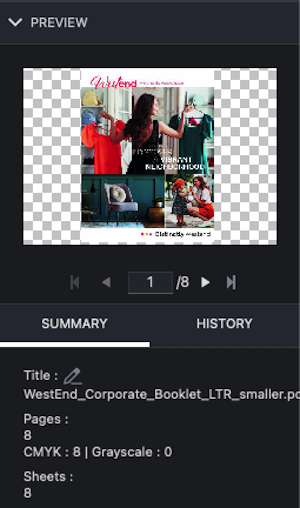
Color and B&W page count preview
Users can preview the number of color clicks for RIPped jobs in Job Summary and the Job List before printing. This provides instant visibility into a job’s color and black and white click counts, enabling operators to determine whether pages should be converted to black and white, estimate production costs more accurately, and avoid unexpected print costs caused by inaccurate job composition information before production.
Why this matters:
Unplanned production costs and inaccurate estimating can reduce profitability. Knowing a job’s actual color composition before production allows operators to take appropriate action in advance.
Availability:
Windows-based servers | Standard |
Linux-based servers | Standard |
Connection
Fiery API enhancements
Fiery API includes new enhancements that improve licensing recovery and troubleshooting for API-enabled workflows.
Customers can now restore Fiery API licenses after a Fiery server reinstallation, with support for automatic restore and a manual restore option.
A new web-based Fiery API Diagnostic Tool also helps authorized users enable advanced logging, test Fiery API responsiveness, capture event information, and download logs for troubleshooting. The tool can be accessed at https://<server-ip>/fieryapidiagnostic, replacing <server-ip> with the IP address of the Fiery server running Fiery API.
Why this matters:
These updates help reduce downtime and simplify support for Fiery API workflows. Customers can restore licenses with less manual intervention, while support teams can collect better diagnostic information faster.
The result is a more reliable experience, especially for customers using Fiery API to connect with business-critical print workflows.
Availability:
Windows-based servers | Standard |
Linux-based servers | Standard |
Reliable
Fiery Universal Hardware Diagnostic Tool
The Fiery Universal Hardware Diagnostic Tool gives technicians one unified workflow to diagnose supported Fiery hardware platforms, replacing multiple legacy diagnostic tools. It automatically detects the Fiery DFE type, runs the appropriate hardware-specific diagnostics, and generates the reports needed to identify and resolve issues faster. Most tests complete in under 10 minutes.
The tool supports selected Windows- and Linux-based Fiery hardware platforms. For cutsheet Fiery servers, the tool is available for download in Tech Corner, where technicians can also check the latest list of supported hardware platforms.
View the datasheet* for more details, including platform compatibility
*accessible for Fiery partners only
Why this matters:
Faster diagnostics help technicians identify hardware issues more quickly, reduce support escalations, and improve first-time fix rates.
By simplifying the diagnostic process across supported Fiery platforms, the tool helps reduce downtime and get customers back into production faster.
Availability:
Windows-based servers | Standard |
Linux-based servers | Standard |
Active licenses on the Configuration Sheet
The updated Server Configuration page and Configuration sheet clearly display all server and client licenses installed on a Fiery server. This gives staff and support teams instant visibility into a Fiery server’s licensing status, enabling faster troubleshooting and complete license restoration after a software reload. The additional information also helps partner representatives verify installed options when systems are resold or removed from showroom floors. Note that actual license numbers (LACs) are not listed for security reasons.

Why this matters:
Instant visibility into installed options saves time and provides greater clarity for users, sales teams, and service providers.
Availability:
Windows-based servers | Standard |
Linux-based servers | Standard |
Secure
Microsoft Windows 11 IoT Enterprise LTSC 2024 support
Fiery servers now support Microsoft Windows 11 IoT Enterprise LTSC 2024.
This update allows supported Windows-based Fiery servers to run Microsoft’s latest LTSC operating system, with key Fiery workflows validated for functionality and performance. It also provides a modern Windows security foundation and long-term OS support for Fiery server environments.
Why this matters:
This update helps customers meet current IT expectations for long-term OS support and modern security, while keeping the Fiery workflow experience they depend on.
Availability:
Windows-based servers | Standard |
Linux-based servers | N/A |
Security audit log enhancements
Fiery Security Audit Logs now capture additional security-related events, giving customers better visibility and traceability for compliance reviews, security policies, and administrative investigations.
Why this matters:
Expanded audit logging helps IT teams review security-relevant activity, document system behavior, and support secure print operations in enterprise, government, and regulated environments.
Availability:
Windows-based servers | Standard |
Linux-based servers | Standard |
Security updates
Fiery servers include updated open-source components and security fixes to help maintain a strong security foundation across supported Fiery products.
These updates refresh core components used by Fiery systems to help address critical vulnerabilities, maintain current security protections, and support privacy and data integrity requirements.
For more detailed information on security features and updates, refer to the Fiery FS800 Pro/FS800 Security White Paper.
Why this matters:
Security-sensitive organizations expect print infrastructure to stay current with vulnerability fixes and component updates. By maintaining key Fiery system components, these updates help reduce security risk, support compliance requirements, and reinforce Fiery as a secure, IT-ready print server platform.
Availability:
Windows-based servers | Standard |
Linux-based servers | Standard |
Modified and removed functions
Calibration enhancements
Fiery FS800/FS800 Pro servers now offer Delta E calibration as the default calibration method*. Compared with density-based calibration, Delta E calibration more closely matches how the eye perceives color, enabling accurate calibration across inks, toners, and specialty colorants. It also provides smoother, more consistent tonal transitions and more predictable color from day to day. Because Delta E calibration is fully aligned with Fiery Edge profiling, using L*a*b* values rather than optical density, it delivers more accurate profiling results.
In addition, the servers support the recalibration of Delta E-based factory default profiles using Fiery ColorCal.*
*Check Fiery server materials to confirm support.
Density Calibration
Uneven visual steps
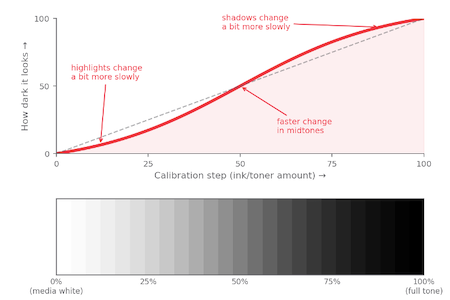
Density: Equal increases in ink/toner do not translate into equally sized visual steps. Highlights and shadows shift a little more gradually, midtones a little faster.
Delta E Calibration
Even visual steps
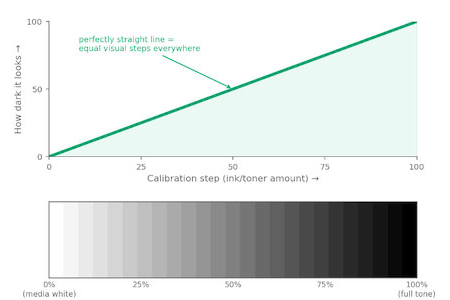
Delta E: Every step is adjusted so it looks equally different to the eye. The result is a smooth, predictable transition from white to black.
Remove APPE Preferred checkbox
Fiery now automatically selects the optimal PDF interpreter, eliminating the need for users to manually choose APPE in Job Properties or WebTools. This simplifies job setup and reduces the risk of processing errors when printing complex PDFs with advanced features.
Fiery Learning
Free learning resources
Fiery Learning delivers educational resources that best fit your needs, using a variety of free, self-paced, web-based courses; videos; or hands-on, practical guides that make it easy to fit training into busy a schedule.
- eLearning courses: interactive online learning sessions
- Simulation learning: learning solution that offers the opportunity to practice techniques and procedures in a realistic, immersive environment
- Express videos: short videos on key topics, delivered by Fiery subject-matter experts
- Webinars: access to recordings of World of Fiery webinars, an on-going program of educational, free webinars that feature valuable information for color professionals, and owners and managers of print businesses or in-plant/CRD operations
- How-to guides: step-by-step instructions with sample files
Fiery certification programs
In today’s fast-changing world, print professionals need a convenient and affordable way to gain new skills and credentials quickly — so you can do more, be more, and take your career to the next level. Be a step ahead of the others. Our paid certification programs will help you stand out in the workplace.
Fiery Cutsheet Foundations Certification
Your gateway to mastering the basics of Fiery technology and the digital front end in the print industry. Created especially for beginners, these courses build your confidence step by step, from setting up your Fiery Command WorkStation to understanding fundamental color management principles.
Fiery Professional Certification
The Fiery Professional Certification teaches you the necessary skills to optimize the performance of your Fiery technology solutions. Developed by Fiery subject-matter experts, it provides the latest information on Fiery technology to develop employee skills, enhance professional development, and transform your print business.
Fiery Expert Certification
The Fiery Expert Certification builds on the Fiery Professional Certification to develop more in-depth expertise. The expert courses help you master the advanced Fiery toolsets and learn to use the full range of features.
Fiery Technician Certification
The Fiery Technician Certification program equips you and your service technicians with the knowledge and skills required to optimize the performance and maintain your Fiery technology and solutions.
For more information on the Fiery certification programs and to enroll, visit this web page.
Fiery Communities
Fiery Communities brings you together with other Fiery users, experts, and support resources in one place, making it easy for you to find answers, exchange best practices, and discuss Fiery products.
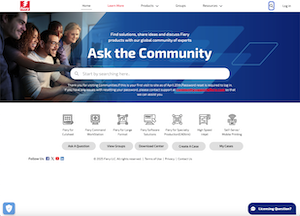
Fiery Communities also offers you additional great features:
- A searchable knowledge base of technical articles created by the Fiery Technical Support team, for solutions to common or known issues.
- The ability to “follow” topics that interest you, or on specific areas of focus.
- A personalized feed which is created dynamically, based on your previous activities on the site.
- The ability to select the “best” answer from multiple solutions.
- Fiery Licensing Assistant, an automated chat option designed to quickly help you with licensing-related questions.
Additional resources
Use this list of sales, training, and technical resources to help you broaden your knowledge of Fiery servers, plus related products and applications.
- Fiery servers
- Fiery Driven presses
- Fiery online resources
- Fiery how-to guides
- Free trials of Fiery software
- Fiery Command WorkStation main webpage
- Fiery Command WorkStation download
- Fiery print driver downloads
- Fiery Impose
- Fiery JobMaster
- Fiery Compose
- Fiery makeready solutions comparison
- Fiery ColorGuard
- Fiery Graphic Arts Pro Package
- Fiery ColorRight Package
- Fiery Automation Package
- Fiery JobFlow Pro
- Fiery FreeForm Create
- Fiery Scribe
- Training resources at Fiery Learning
- Fiery Communities
- Fiery online help
- World of Fiery newsletter