

 Português
 Deutsch
 English (UK)
 Español
 Français
 Italiano
 日本 (日本語)
 中国大陆 (简体中文)
Fiery How-To: Easily Automate Job Submission with Job Presets and Fiery Hot Folders!

In this first entry of our Fiery How-To series, we’re bringing you a quick get-started guide for adding automation into your job setup workflows.
For many print shops, workflow automation sounds like a major project involving new software, new processes, and extensive training. But automation does not have to start that way.
One of the easiest and most effective places to begin is with the job setup tasks operators perform every day. Because these tasks are repeated across hundreds of jobs, they can slow production, increase the risk of errors, and consume valuable operator time. Automating routine setup work helps standardize production, reduce manual intervention, and enable faster job processing with fewer errors.
Job Presets and Fiery Hot Folders* provide an easy and practical way to begin automating print workflows using your Fiery digital front end and Fiery Command WorkStation. Within minutes, you can automate common production settings to improve consistency, reduce setup time, and simplify job submission for operators of all skill levels.
Save time on repetitive jobs with Job Presets
A Job Preset allows operators to save commonly used job settings and apply them instantly to future jobs. Instead of repeatedly configuring the same settings, operators can apply a saved preset with a single click. Local Job Presets are available only on the user’s workstation, while Server Presets are created by administrators and shared with other Fiery users. Server Presets are particularly useful because they can be shared across multiple users and incorporated into automated workflows, including Fiery Hot Folders and Fiery JobFlow.
How to create a Job Preset in Fiery Command WorkStation
- Open a frequently printed job in Command WorkStation
- Go to Job Properties
- Select the settings needed for that job type, such as media, layout and imposition, color, image settings, and finishing
- Open the Presets drop-down in the top right of the screen, and save the setup with a clear, descriptive name
- If the preset should be shared across users and workflows, save it as a Server Preset
Clear naming conventions make presets easier to identify. For example, “Business Cards 24-up” or “Brochure Gloss Folded” is far more useful than “Preset 1.”
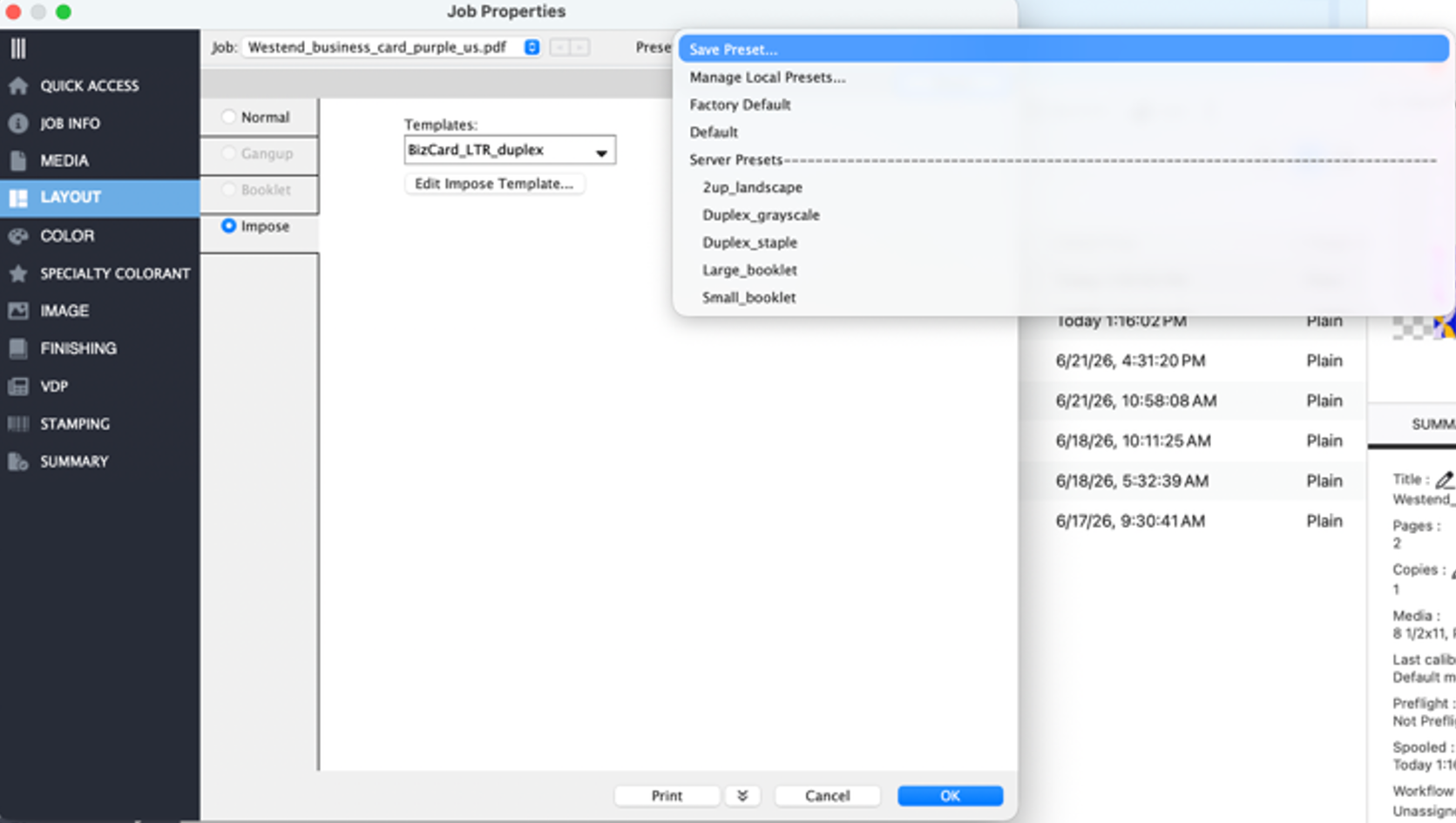
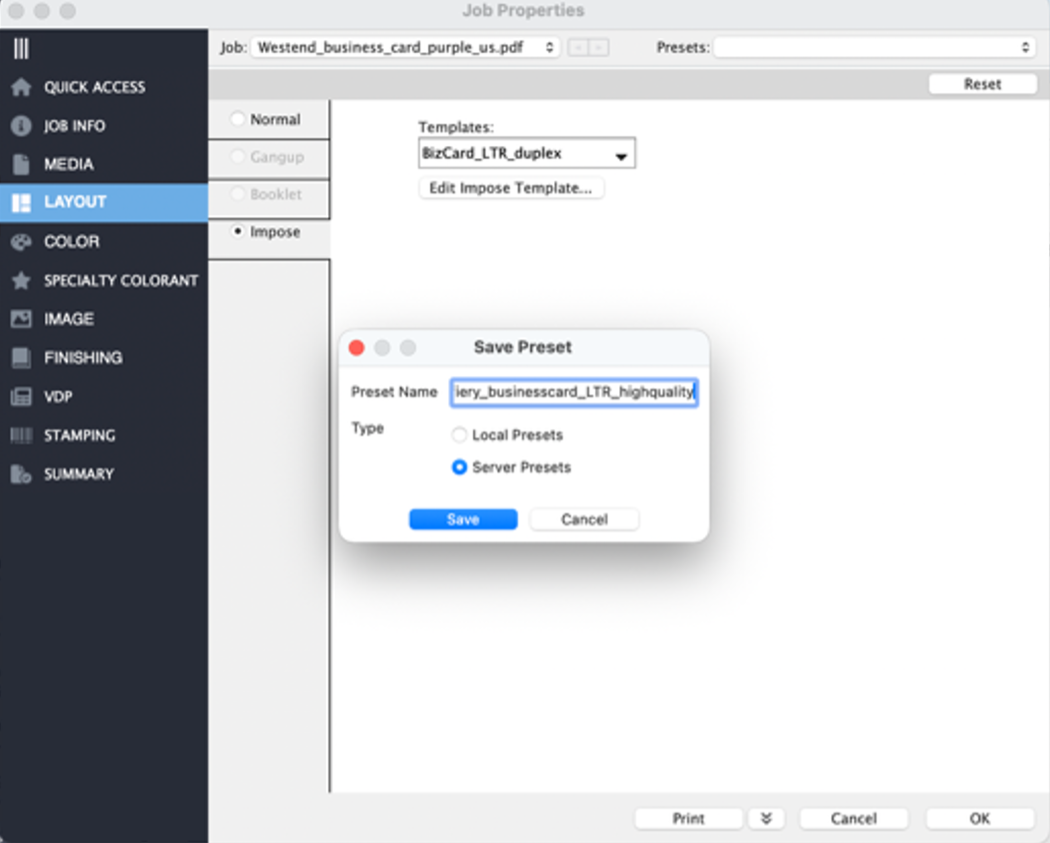
Configure the job properties, then save as a Preset
Save as a Server Preset if it should be shared among users
Automate job submission with Fiery Hot Folders
Once Job Presets are in place, Fiery Hot Folders make automation even easier by applying those settings whenever files are dropped into the folder. Instead of opening Job Properties and selecting settings for every file, operators can simply drag-and-drop files into the correct Hot Folder, without opening the native application.
The assigned Fiery settings or presets are automatically applied, and the job is sent to the Fiery server with the configured job action, such as Hold, Print, or another defined action. In Command WorkStation, operators can review the job, check settings and reports, and make any necessary adjustments before production.
How to create a Fiery Hot Folder
- Open Fiery Hot Folders from the Fiery applications menu in Command WorkStation
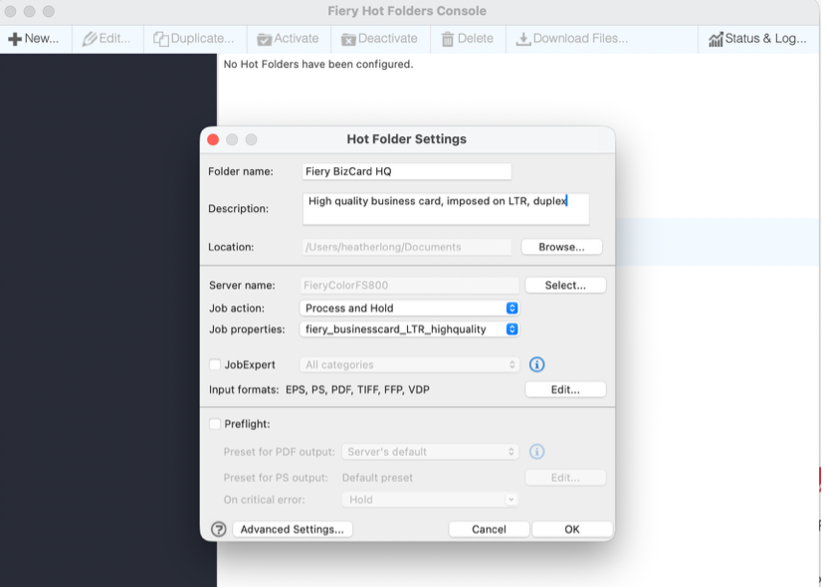
- Create a new Hot Folder
- Name the folder based on the workflow or job type
- Select the Fiery server destination
- Choose the job action, such as Hold or Print
- Apply the appropriate Job Preset
- Save the Hot Folder
- Drag and drop files into the folder to automate job submission
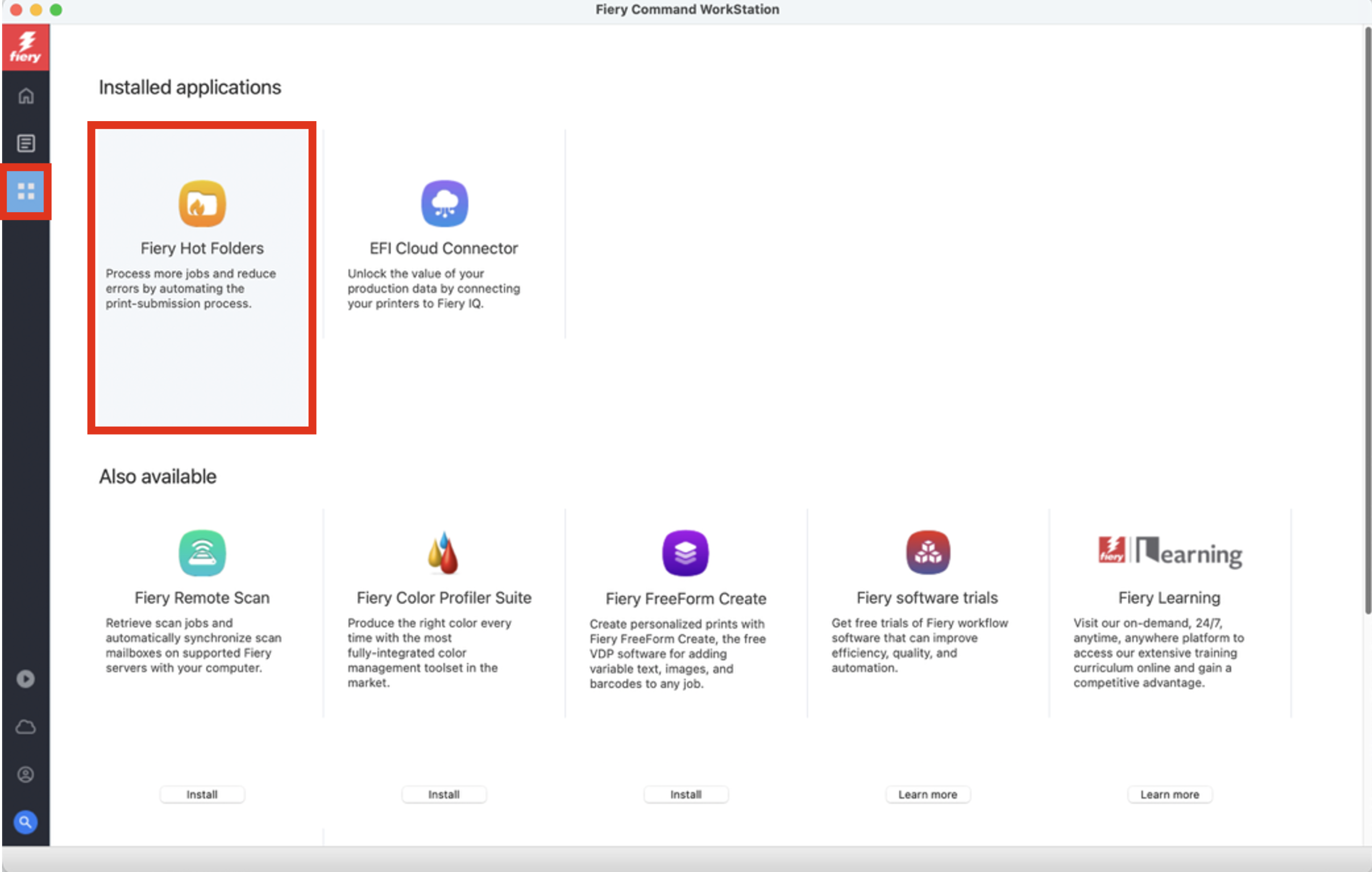
Open Apps and Resources, then click on Fiery Hot Folders
Name the Hot Folder, connect to your Fiery server, and apply the Job Properties
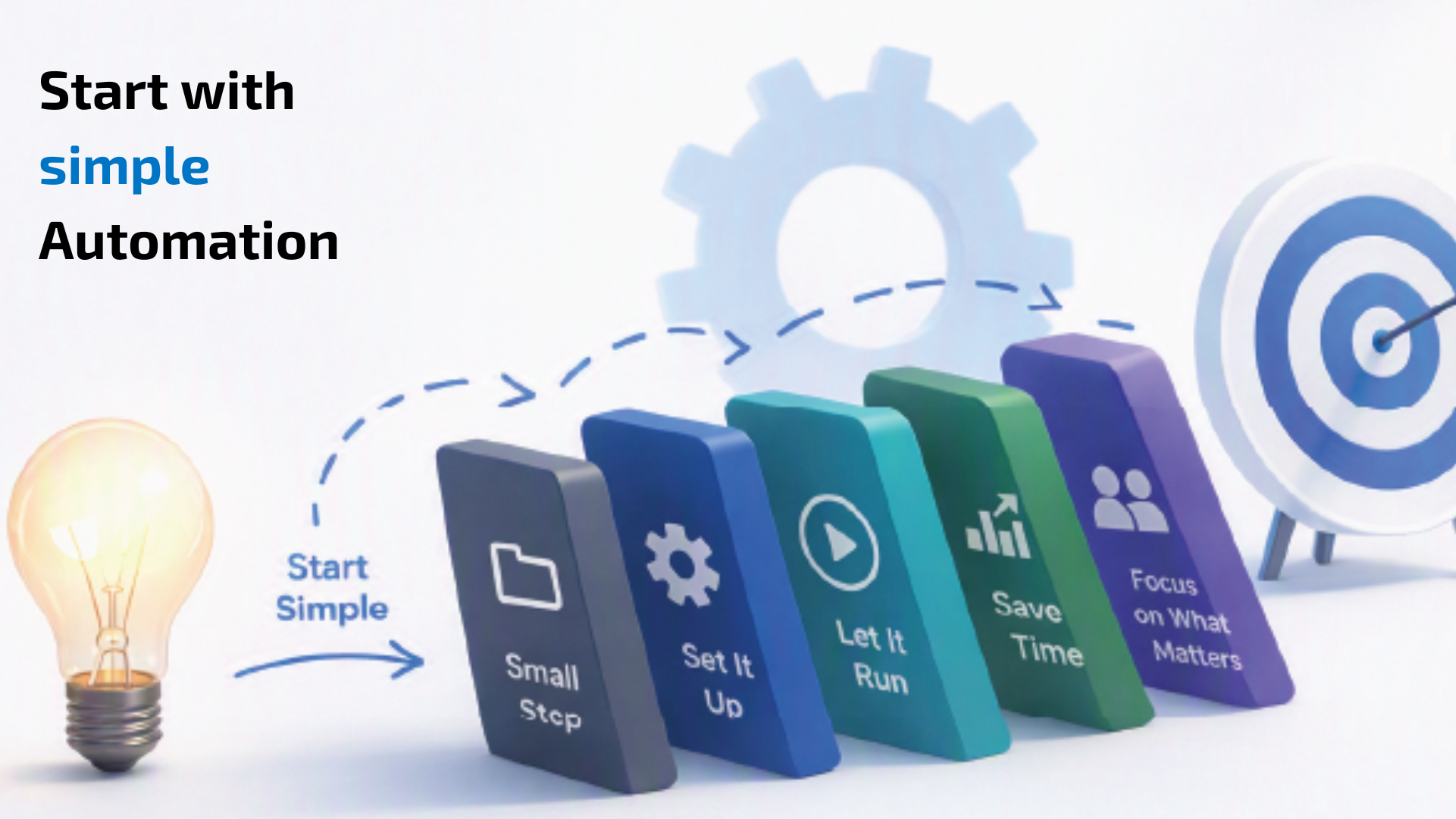
Start with simple automations
It’s easy to get started with Job Presets and Fiery Hot Folders. Start with one folder for a common job type, such as business cards, brochures, or invoice printing. Once that workflow is tested and trusted, build the next one.
A common use case for Fiery servers with Preflight is automating basic preflight checks before production begins. Create a Hot Folder called “Preflight” and apply a preflight preset that checks for image resolution, missing fonts, and missing or unavailable spot colors. Set the job action to Hold so the operator can review the report in Command WorkStation and address any issues before printing.
This type of preflight automation helps identify common file issues early, reducing waste, minimizing rework, and preventing production delays.
Other common ways to automate workflows with Fiery Hot Folders include:
- Gang-up jobs: Apply predefined imposition settings for multi-up layouts and finishing marks
- Variable data printing (VDP): Automate submission of supported VDP file formats with predefined job settings
- Departmental printing: Create workflow folders for specific users or applications
As the above examples illustrate, once foundational Job Presets and Fiery Hot Folders are in place, building additional workflow automation is quick and easy.
Start automating your print workflows today
Even small automation steps can have a meaningful impact on productivity. Start with a Job Preset or Fiery Hot Folder for a common job type, then expand your automated workflows as your needs grow.
Get started today by watching the Fiery webinar Eliminate Repetitive Setup with Hot Folders and Presets for a live demonstration.
Already using Hot Folders? Watch our complete 6-part Automation Webinar series for tips on automating imposition, prepress, barcodes, and print workflows.
* Fiery Hot Folders are standard on Windows-based Fiery servers and available on Linux-based servers as either a standard or optional feature.