

 Português
 Deutsch
 English (UK)
 Español
 Français
 Italiano
 日本 (日本語)
 中国大陆 (简体中文)
Fiery Command WorkStation 7.3
What’s new guide for Fiery Command WorkStation Package 7.3
Overview
Fiery® Command WorkStation®, the print job management interface for Fiery servers, makes printing more productive and powerful. It centralizes job management, connects to all Fiery servers on your network, and improves productivity. The intuitive interface simplifies job management, regardless of your level of experience.
Full cross-platform Apple® macOS® and Microsoft® Windows® support provides a consistent look and feel, plus the same functionality across computing platforms. A fully functional remote connection to a Fiery server provides you the same quality results for server administration as with a local connection. Fiery Command WorkStation 7.3 supports Fiery servers running FS300/FS300 Pro or later, Fiery Central 2.9 or later, and Fiery XF 7 or later.
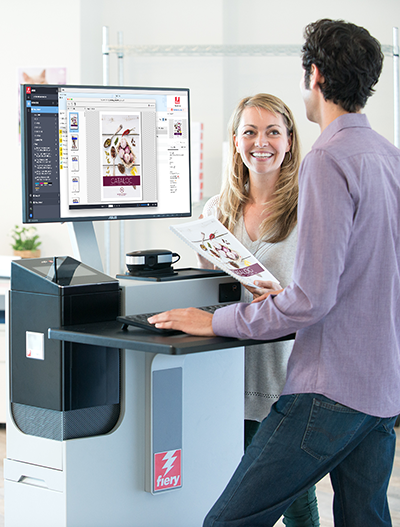
You can download version 7.3 of Command WorkStation at www.fiery.com/CWS.
If you are a high-speed inkjet printer user, you should contact your printer manufacturer for information on how to upgrade to the latest version of Fiery Command WorkStation.
Fiery Command WorkStation Package 7.3
Fiery Command WorkStation 7.3 is part of the Fiery Command WorkStation Package. The download and installation process for this package is handled by the Fiery Software Manager.
The package includes, Fiery Command WorkStation, Fiery Hot Folders (cutsheet and high-speed inkjet only) and Fiery Software Uninstaller (macOS only).
Fiery Software Manager
In addition to the Command WorkStation Package, Fiery Software Manager also facilitates the installation of important Fiery software.
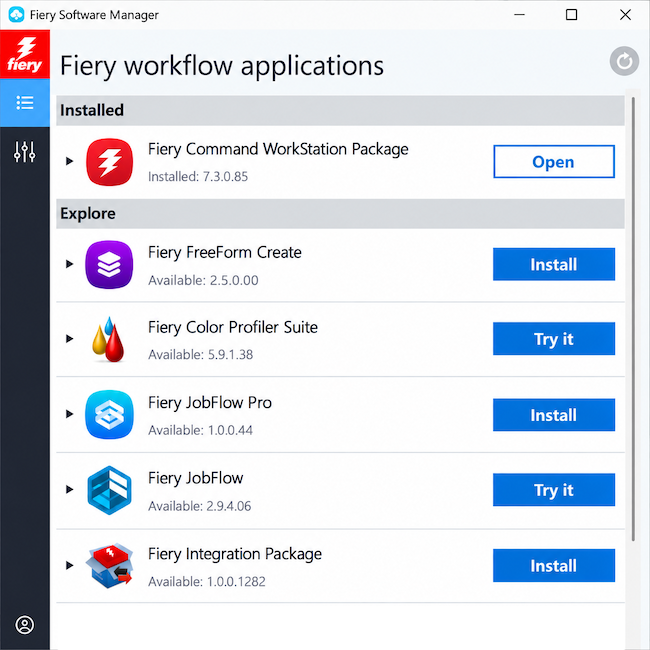
To install or update software using Fiery Software Manager, you need a Fiery Account.
The following Fiery applications can be installed:
- Fiery FreeForm Create
- Fiery Remote Scan
- Fiery JobFlow
- Fiery JobFlow Pro
- Fiery Color Profiler Suite
- Fiery Integration Package
Fiery FreeForm Create
A free, stand-alone application to create personalized jobs. It lets you easily add variable elements such as text, images, and barcodes to existing files.
Fiery Remote Scan – cutsheet only
This application allows you to retrieve scan jobs and automatically synchronize scan mailboxes on supported Fiery servers with your desktop computer.
Fiery JobFlow
Fiery JobFlow™ helps you streamline prepress workflow automation for job processing and printing. You can start with free Fiery JobFlow Base* for PDF conversion, Fiery Preflight, image enhancement, document imposition, job submission, archiving, and output. You can upgrade to paid Fiery JobFlow for rules-based workflows, advanced preflight and PDF editing powered by Enfocus PitStop technology, and cloud-based approval processes.
*Fiery JobFlow Base version is available for cutsheet and high-speed inkjet, but not large format.
Fiery JobFlow Pro
Fiery JobFlow Pro helps you automate job preparation and routing with fewer manual touchpoints. It analyzes job content, applies Fiery presets, helps explain complex preflight results, and triggers workflows from hot folders, barcodes, Fiery server activity, and production devices. With deep Fiery integration, JobFlow Pro helps you keep production moving faster and more consistently.
Fiery Color Profiler Suite
Manage color and quality across your Fiery Driven printers with advanced tools for creating, editing, and inspecting profiles. Ensure accurate, consistent color across applications and substrates while improving your productivity and return on investment.
Fiery Integration Package – Windows client only, for cutsheet
The Fiery Integration Package includes Fiery JDF and Fiery API. The Windows application can update both your Windows- and Linux-based Fiery servers. You must select “Show additional features” in Fiery Software Manager Preferences to see the Fiery Integration Package and download it.
1 Standard on external FS500 Pro and newer servers. Requires Fiery Graphic Arts Package, Premium Edition (external Fiery FS350 and earlier servers), Fiery Graphic Arts Pro Package (external Fiery FS400 Pro servers), or the Fiery Automation Package (embedded Fiery FS400 and newer servers).
2 Requires Fiery Image Enhance Visual Editor
3 Requires Fiery Impose
Specifications
Fiery Command WorkStation 7.3 and Fiery Hot Folders can connect to:
Fiery servers running Fiery system software:
- FS300/FS300 Pro or later
- Fiery Central 2.9 or later
- Fiery XF 7 or later
For client computers, the requirements to install Fiery Command WorkStation and Fiery Hot Folders are:
macOS clients:
- macOS 14, 15, 26, and 27
- 4 GB of RAM or more recommended
- 7 GB of available hard drive space
- Minimum display resolution:
- For cutsheet users: 1280 x 1024
- For large format users: 1600 x 900
Windows clients:
- Microsoft Windows 10 (64-bit) and 11
- Microsoft Windows Server 2022 and 2025
- Intel® Core™ i3 processor or above
- 4 GB or more of RAM
- 16 GB of available hard drive space
- Minimum display resolution:
- For cutsheet users: 1280 x 1024
- For large format users: 1600 x 900
To connect to earlier Fiery system software versions, you can install Fiery Command WorkStation 5.8 (for Fiery System 9), 6.4 (for Fiery System 10), 6.5 (for FS100/100 Pro), 6.8 (for FS150/150 Pro) or 7.2 (for FS200/200 Pro). You can download earlier versions of Fiery Command WorkStation here.
Learn how to downgrade from version 6.x to version 5.8 at http://solutions.fiery.com/cws/58/install.
New features by innovation area
Continuing the tradition of delivering new value to our Fiery community, version 7.3 delivers you a range of new features in all Fiery innovation areas including productivity, color & imaging, and management.
New features in this release provide:
- Faster and more automated ways to set jobs up for print
- Advanced capabilities for late color editing and precise control
- More efficient ways to work with jobs and manage server setup
Productivity | Color & Imaging | Management |
|
|
|
* Also available for Fiery Driven large format printers.
Note: Features vary by print engine model. Please refer to the individual product datasheet or feature matrix to find out exactly which features are available.
** Available as part of Fiery Graphic Arts Pro Package or Fiery ColorRight Package.
Productivity
Customizable Job Actions menu
As more great features are added to your Fiery servers, the Job Actions menu can become lengthy and difficult to navigate. You can now customize it to make the actions you use most often easier to find.
Using Customize Menu, you can hide actions you rarely use, move your most frequently used actions to the top, and group related actions with separators to create a menu that fits the way you work.
You can click the arrows, drag and drop, or double-click to move actions between Available and Selected. Actions that you remove from the main menu remain available in the More menu, so you can still access them whenever you need them.
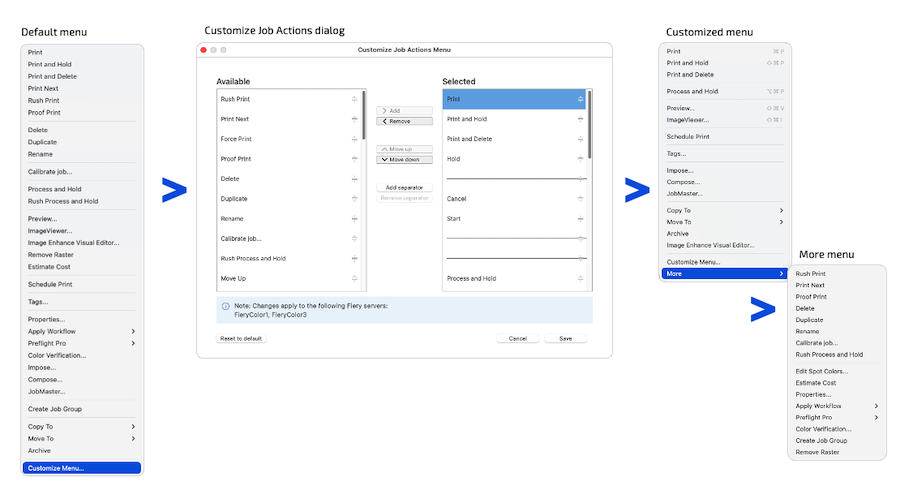
Your customizations apply to all Fiery servers of the same technology. For example, if you customize the Job Actions menu for a cutsheet server, the customization applies to the other cutsheet servers connected to your client, including cutsheet servers you connect to later. You can customize each server technology separately, so your menus can be tailored to your workflow for cutsheet, high-speed, and large format servers.
Customizations are included in any Workspace Backup and Restore you perform from Preferences. A Fiery Account is required.
Key benefits
- Reduce menu clutter and focus on the actions you use most
- Access frequently used actions faster by prioritizing them in the menu
- Organize actions your way with custom ordering and separators
Watch the what’s new video
Type-to-select job locating
You can now use Type-to-select to quickly navigate to a job in the Job List using your keyboard. It provides the same familiar type-to-select experience you already know from Mac Finder and Windows Explorer, making it faster and easier to get to the job you need.
With the Job List focused, simply start typing the beginning of a job title. Type-to-select automatically selects the first matching job based on the current sort order, without filtering or changing your Job List view. Matching is case-insensitive, so you can type naturally without worrying about capitalization.
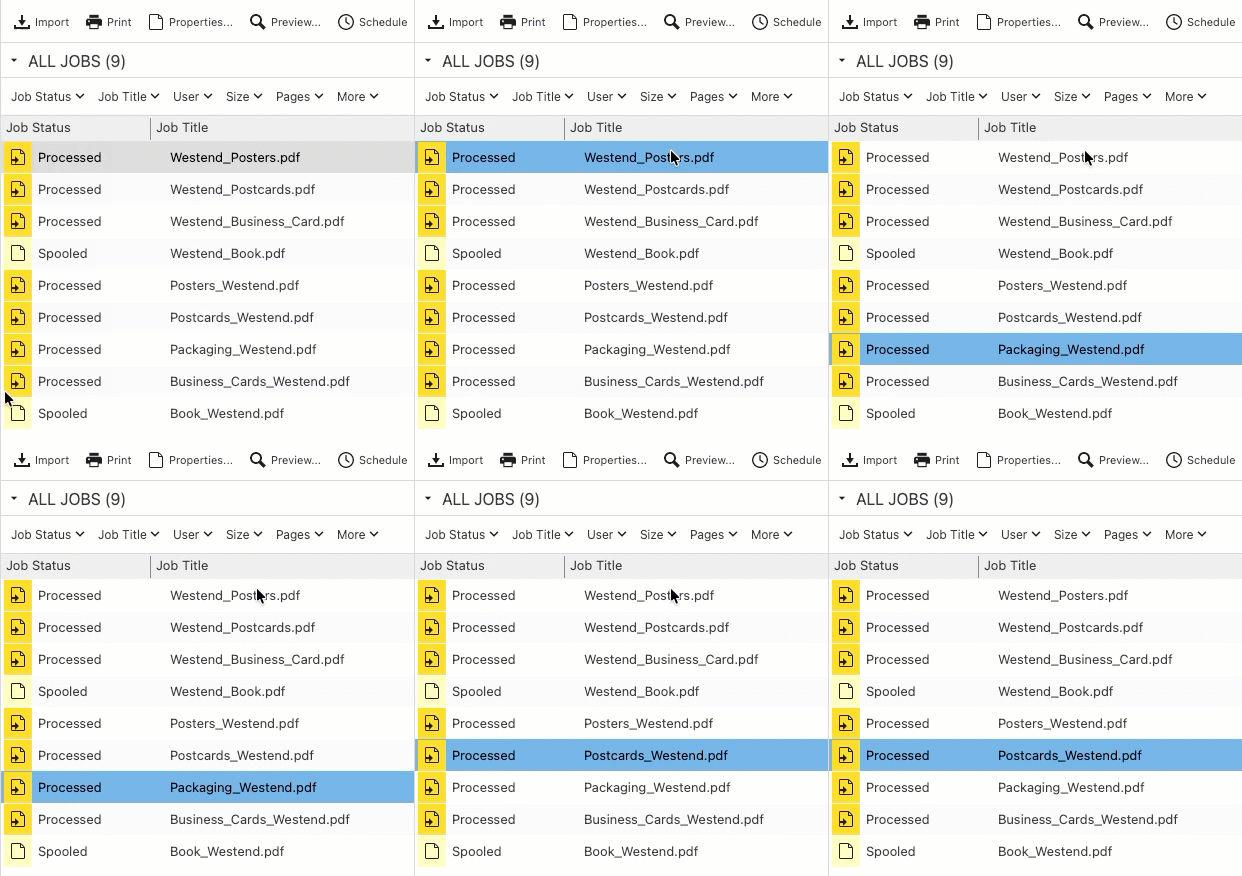
If multiple jobs start with the same character, press that character repeatedly to cycle through the matching jobs. You can also continue typing additional characters to refine the match and jump directly to a specific job. After you stop typing for one second, the character sequence resets, ready for you to start a new selection.
Type-to-select works in both List and Icon views, supports all Command WorkStation languages, and is available on both Windows and Mac.
Watch the what’s new video
Fiery Scribe enhancements
Fiery Scribe uses AI-powered job intake to transform customer emails into production-ready jobs. It interprets natural language requests, identifies key print requirements, and applies the job properties, helping you reduce manual job setup and move jobs into production faster.
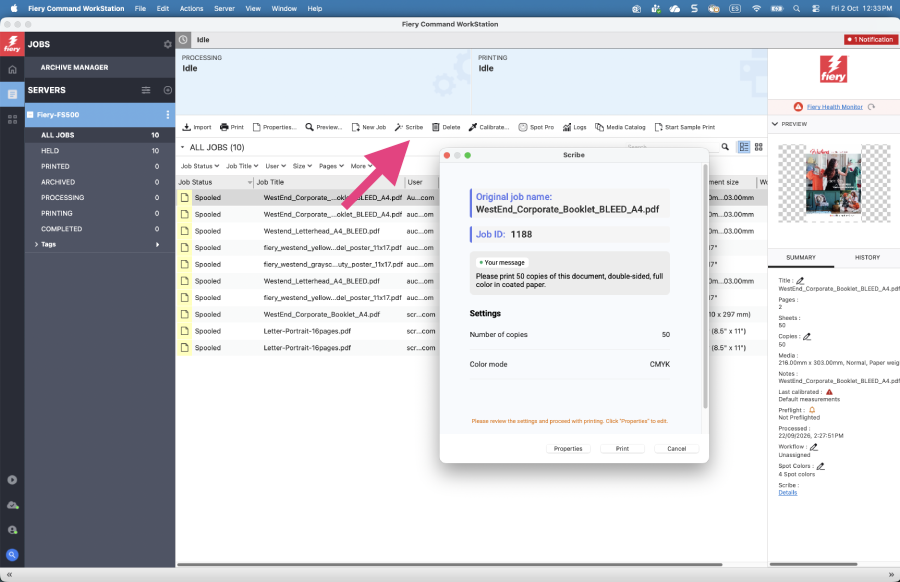
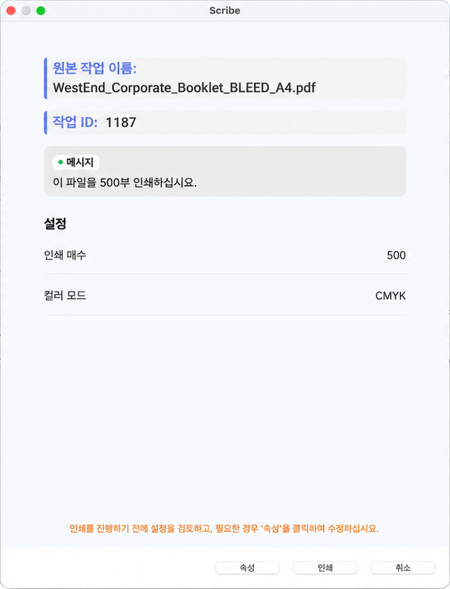
Fiery Scribe now offers expanded Fiery server and language support, making automated job intake available to more Fiery servers and users.
Expanded Fiery server support
Fiery Scribe now uses JDF job ticketing to support a broader range of Fiery systems. You can now use Fiery Scribe with all Fiery Driven™ DFEs running Fiery FS500 Pro system software and newer.
For Linux-based Fiery servers, the Fiery Automation Package is required to enable JDF support.
Expanded language support
Fiery Scribe now supports all languages available in Fiery Command WorkStation, so your customers can submit job requests in their original language. Fiery Scribe interprets their requests and applies the appropriate job properties, helping you automate incoming jobs with less manual setup.
Fiery Scribe is available as a subscription add-on through Fiery IQ. You can try it with a free trial and purchase a subscription through an authorized Fiery reseller or the Fiery Shop.
Watch the Fiery Scribe Express Video to learn how to set it up and get started.
Watch the what’s new video
Color & Imaging
Fiery ImageViewer Object Editor
Make object-level color corrections in the Fiery workflow
Fiery ImageViewer Object Editor introduces AI-powered, object-based color editing. Operators can select individual objects within a print job and apply color adjustments only where they are needed, without affecting surrounding content or returning to design applications.
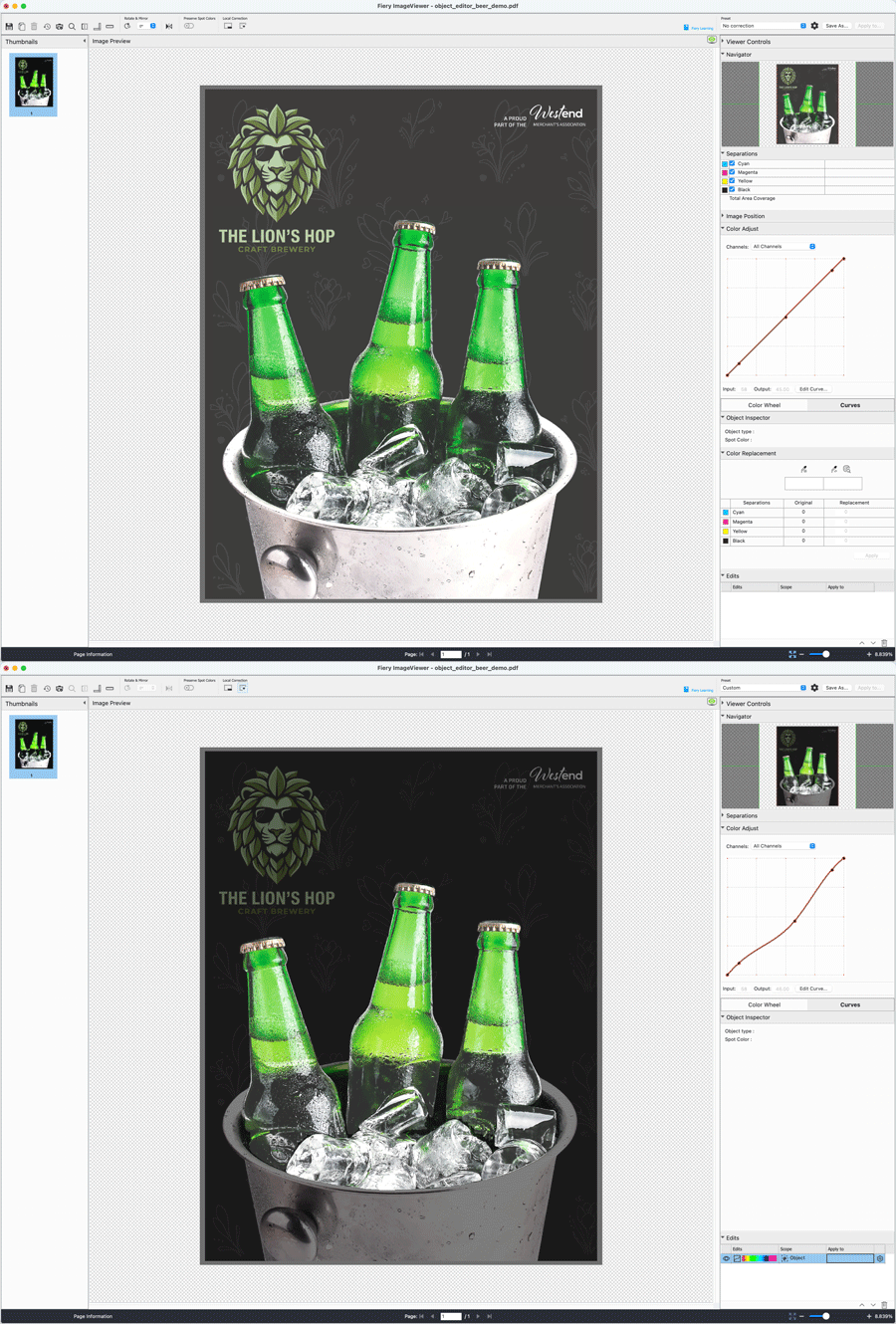
The patented Object Editor uses AI-driven segmentation to automatically detect and mask objects on a page. Operators can select an object with a single click, make targeted color edits, preview the result immediately, and quickly and easily refine. Multiple objects can be selected at once, and selections can be inverted for faster editing of complex pages. A single object-based edit can be applied per page and may include multiple selected objects, making it easy to apply the same correction across related elements.
AI processing runs entirely on the client system with no cloud connection. This helps keep customer job data secure while delivering predictable performance in production environments.
Photoshop-style editing
Many object-level corrections that traditionally required design applications such as Adobe Photoshop can now be performed directly in Fiery ImageViewer. Object Editor brings Photoshop-style automatic object selection and targeted color editing capabilities, enabling operators to make sophisticated object-level corrections without leaving the Fiery workflow.
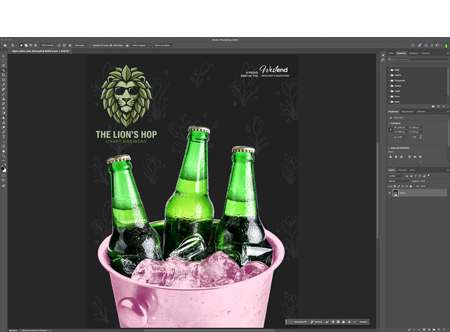
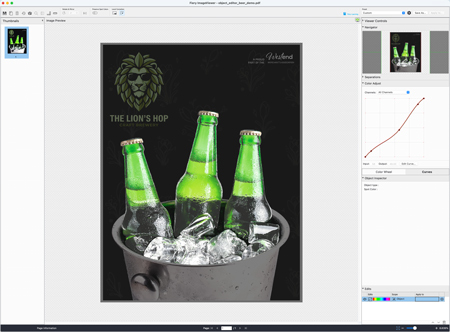
Before: open in design application > edit objects > save > export to PDF > re-RIP > iterate again if needed > re-RIP > print
Now: edit objects directly in ImageViewer > print
By integrating object-editing capabilities directly into ImageViewer, Fiery reduces dependence on external design applications and specialized prepress expertise. Common production corrections can be completed in seconds, helping streamline workflows and keeping production moving smoothly.
From page-wide adjustments to object-level precision—no re-RIP required
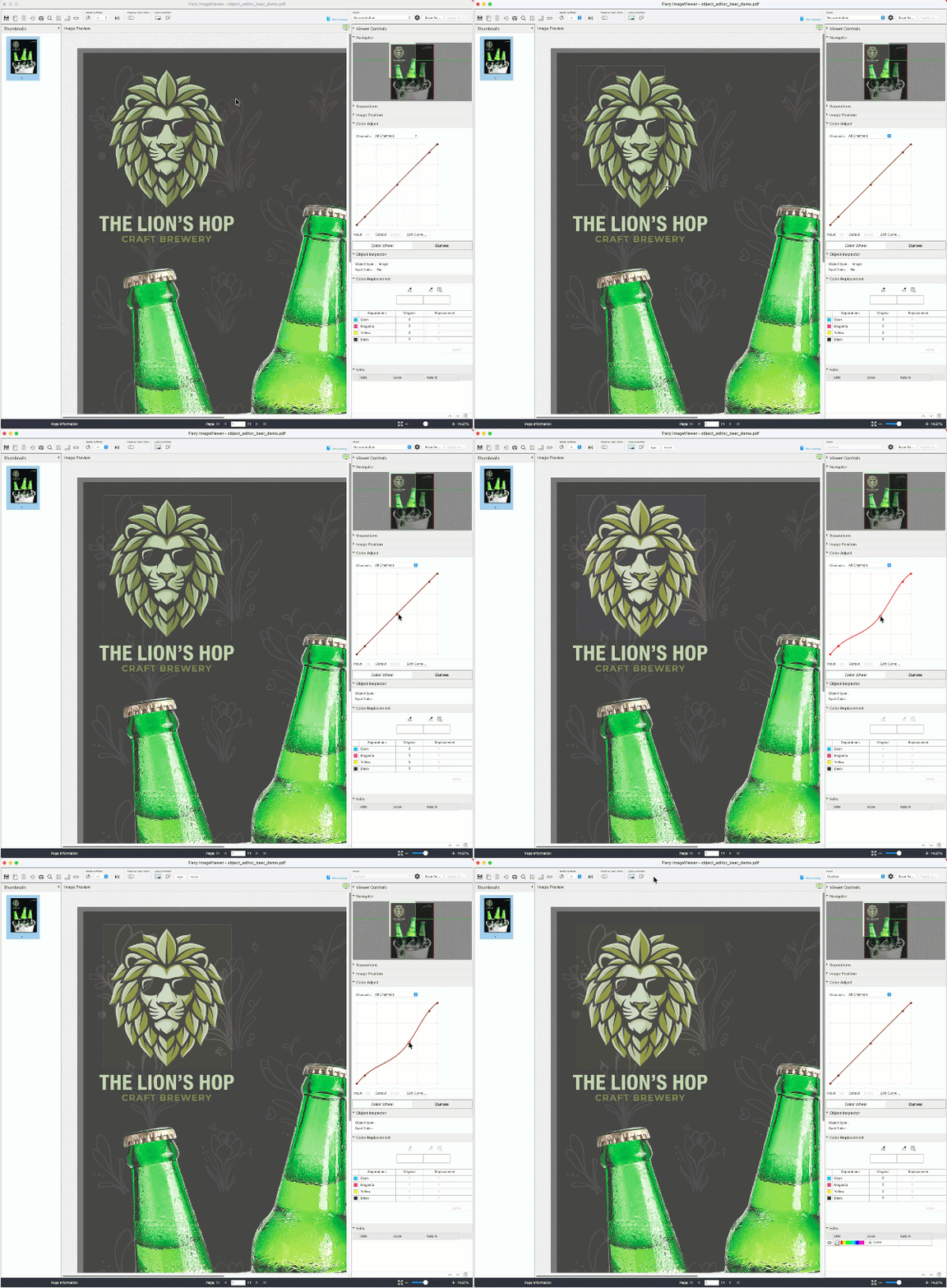
With the introduction of Object Editor, you can now apply color edits to the raster (RIPped) file at three different levels within ImageViewer, with no need to re-RIP before printing.
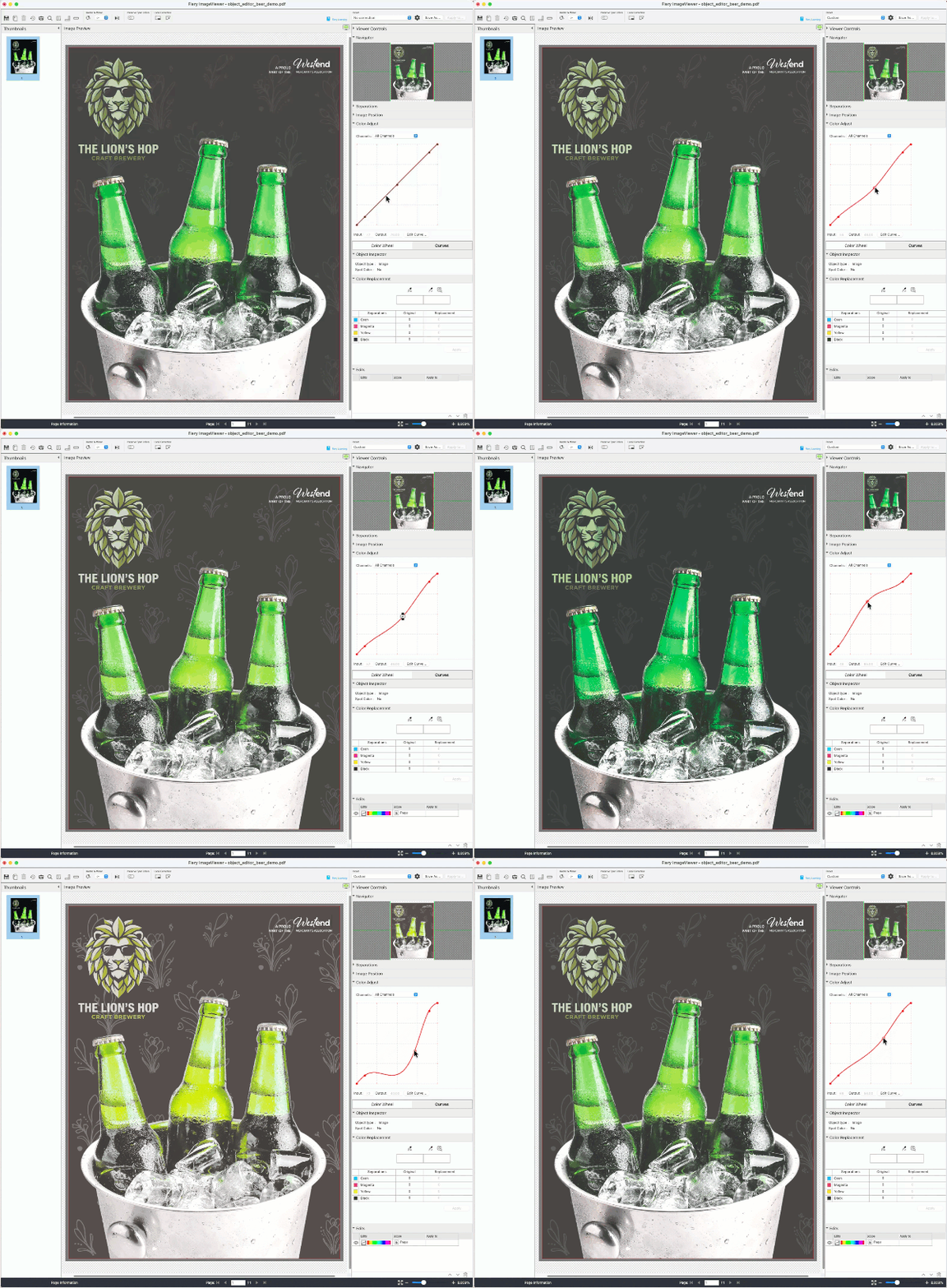
Global edits (existing)
Adjust curves or replace colors across a whole page or job.
Note how all colors on the page change when the curve is adjusted.
Local edits (existing)
Apply corrections to a specific area of a page.
Note how the lion logo and the background contained in the selection area change when the curve is applied.
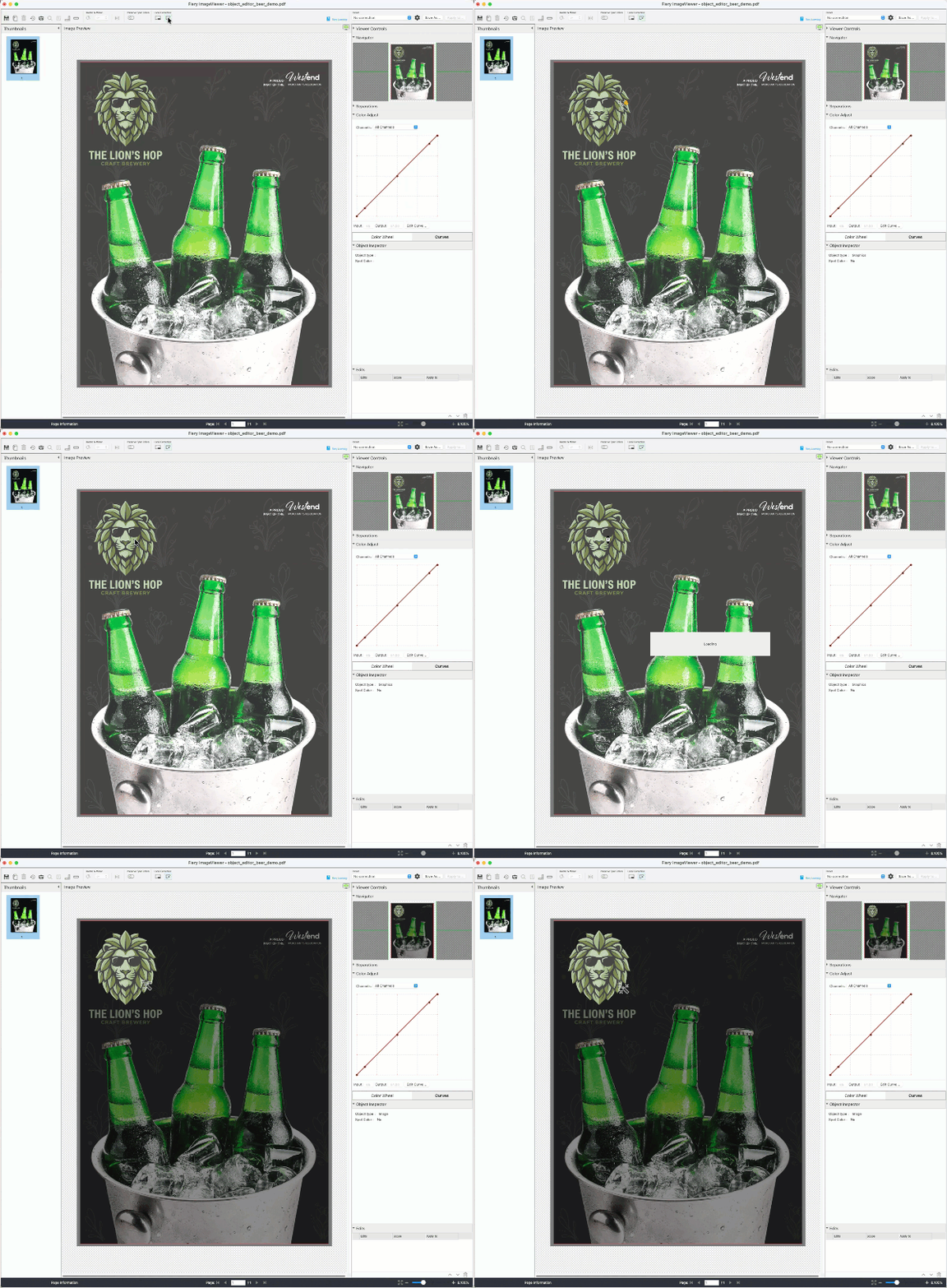
Object-based edits (new)
Automatically detect objects and adjust only the selected content.
Note how only the lion head is selected for color adjustment.
Note: You can apply a single object-based edit per page to one or multiple selected objects.
How to get Object Editor
System requirements:
- Fiery FS800 Pro/FS800 or newer software
- A license for Fiery Graphic Arts Pro Package (Windows-based servers) or Fiery ColorRight Package (Linux-based servers)
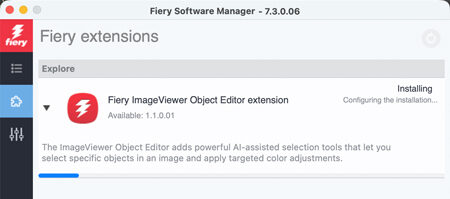
To enable Object Editor, download and install the plugin from Fiery Software Manager.
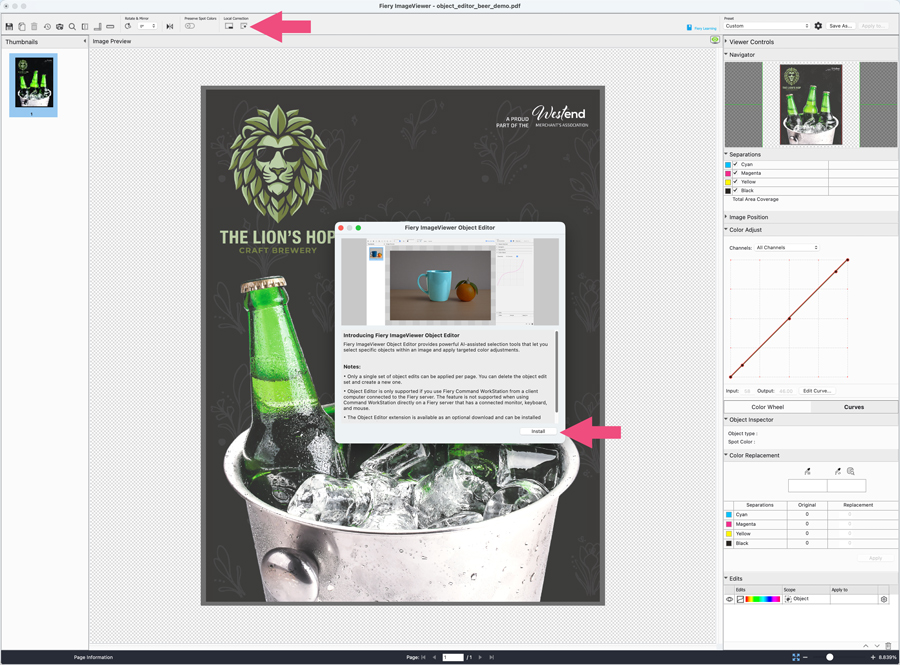
Fiery Software Manager will open and automatically install the Object Editor extension.
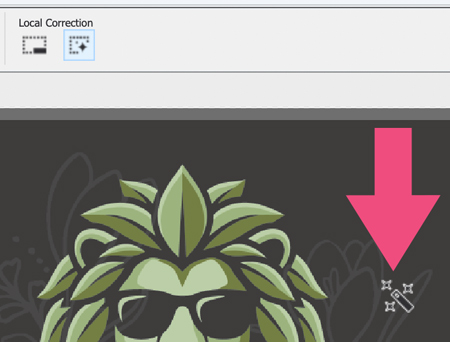
Object Editor is ready to use when the option is selected and the icon turns into a magic wand.
Note: Object Editor is not supported on Fiery Command WorkStation clients installed directly on a Fiery server.
Additional information:
For how-to videos and a link to a free eLearning course, visit the ImageViewer product page. You can also access ImageViewer learning resources directly from the application.
Keyboard shortcuts for object selection:
Windows | macOS | Description |
Left-click | Left-click | Select an object. |
Ctrl + Left-click | Cmd + Left-click | Select additional objects. |
Alt + Left-click | Opt + Left-click | Remove objects from the selection. |
Alt + I | Opt + I | Invert the current selection. Selected objects become unselected, and unselected objects become selected. |
C + Left-click | C + Left-click | Clear all selections. |
Shift + Left-click or Shift + Right-click | Shift + Left-click or Shift + Right-click | Add a positive point to the mask with Shift + Left-click, and add a negative point to the mask with Shift + Right-click. Positive points indicate areas that should be included in the object mask, and negative points indicate areas that should be excluded from the object mask. Positive and negative points help refine object boundaries when the initial object selection does not exactly match the area that you want to edit. Example: Consider an image of a person wearing a shirt. Clicking on the person may initially select the entire person as a single object. |
G + Left-click or W + Left-click | G + Left-click or W + Left-click | Select an object with object detection models specialized in graphics and font content. If one model does not produce a clean selection, use the alternative model. Try this when the cursor shows a warning icon while hovering over an object. |
Alt + K | Opt + K | Open the Mask edits window after object edits have been applied. |
Watch the what’s new video
Management
Media Catalog filter and search
Locating the correct media for a print job is now faster and easier, even when you work with large media catalogs. The new search and filter capabilities apply to Media, Paper, and Substrate Catalogs.
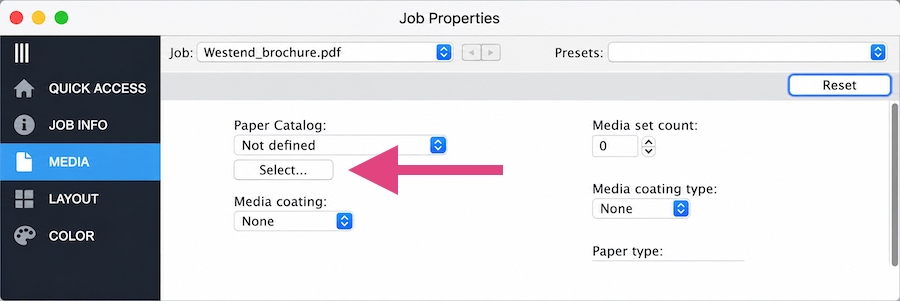
When you open the media selection window from Job Properties, you can now quickly narrow down the list using Filter and Search.
Use the Filter option to display media entries for a specific size. You can select from the sizes available in your device’s media catalog, or select All to display every entry.
Use the Search field to find a specific media entry. Your search is performed across all available columns, so you can search by information such as media name, description, or size. For example, if you enter A3, you’ll see entries containing “A3” anywhere in the available media information.
You can use Filter and Search together to further narrow down the list.
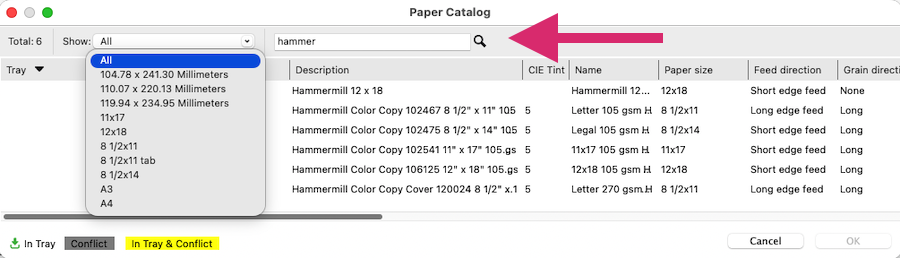
The Total count shows you how many media catalog entries are currently available, both before and after you apply a search or filter.
You’ll also notice improved performance when working with large media catalogs. The media selection window opens significantly faster, and after the catalog has been loaded, subsequent access is even faster because catalog information is cached.
Watch the what’s new video
Show more Tags
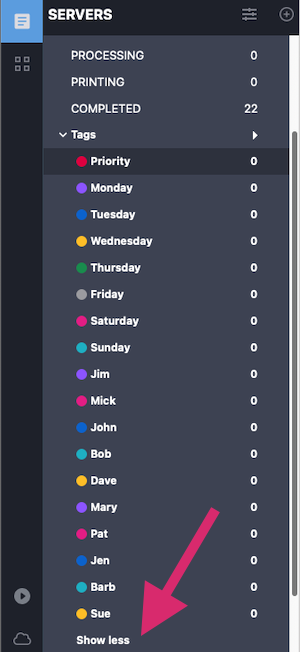
You can now view more than ten tags in Command WorkStation, making it easier to manage and organize jobs when a server has a large number of Tags.
Previously, Command WorkStation displayed only the first ten Tags in the Server List. If you had more than ten Tags, you needed to move tags up or down in the Manage Tags dialog to bring the ones you wanted to view into the first ten positions.
With this enhancement, when more than ten Tags are available, “Show more” appears below the Tags list. Select “Show more” to display all available tags for the server.
To return to the default view, select “Show less” to display only the first ten tags.
Key benefits
- Easily view all available tags without rearranging their order
- Quickly access tags when managing environments with a large number of tags
- Maintain a simple, uncluttered view when fewer tags are used
- No change to the existing maximum of 50 tags per server
Watch the what’s new video
Exportable cost estimation data
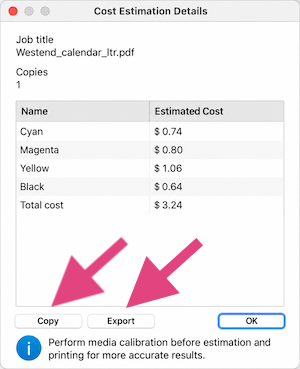
You can now easily share and analyze your job and ink cost estimation information with the new Copy and Export functions in Fiery Smart Estimator*.
For supported cutsheet and high-speed servers, you can copy estimation details directly from the application or export them as a CSV file. This makes it easier to share information, create reports, and perform further analysis without manually entering data.
Depending on the server and printer type, the menu entry and details dialog are named Cost Estimation or Ink Estimation.*
Estimation details use cases
Use Copy to copy the complete estimation details while retaining their formatting. You can then paste the information directly into a Word document to create reports or records or into an email to quickly share details.
Use Export to save your estimation details as a CSV file. You can then open the file in a spreadsheet application and analyze the data without manually entering the information, saving time and reducing the risk of errors.
*Check your Fiery server materials to confirm support.
Watch the what’s new video
Selective Job Preset export
You can now select which Job Presets you want to export, making it easier to manage and share only the presets you need. Previously, exporting Job Presets included all user-created presets, regardless of your selection, while default presets were excluded. Now, you can export one or more selected presets, including both default and user-created Job Presets. Selected presets are exported as a standard ZIP package.
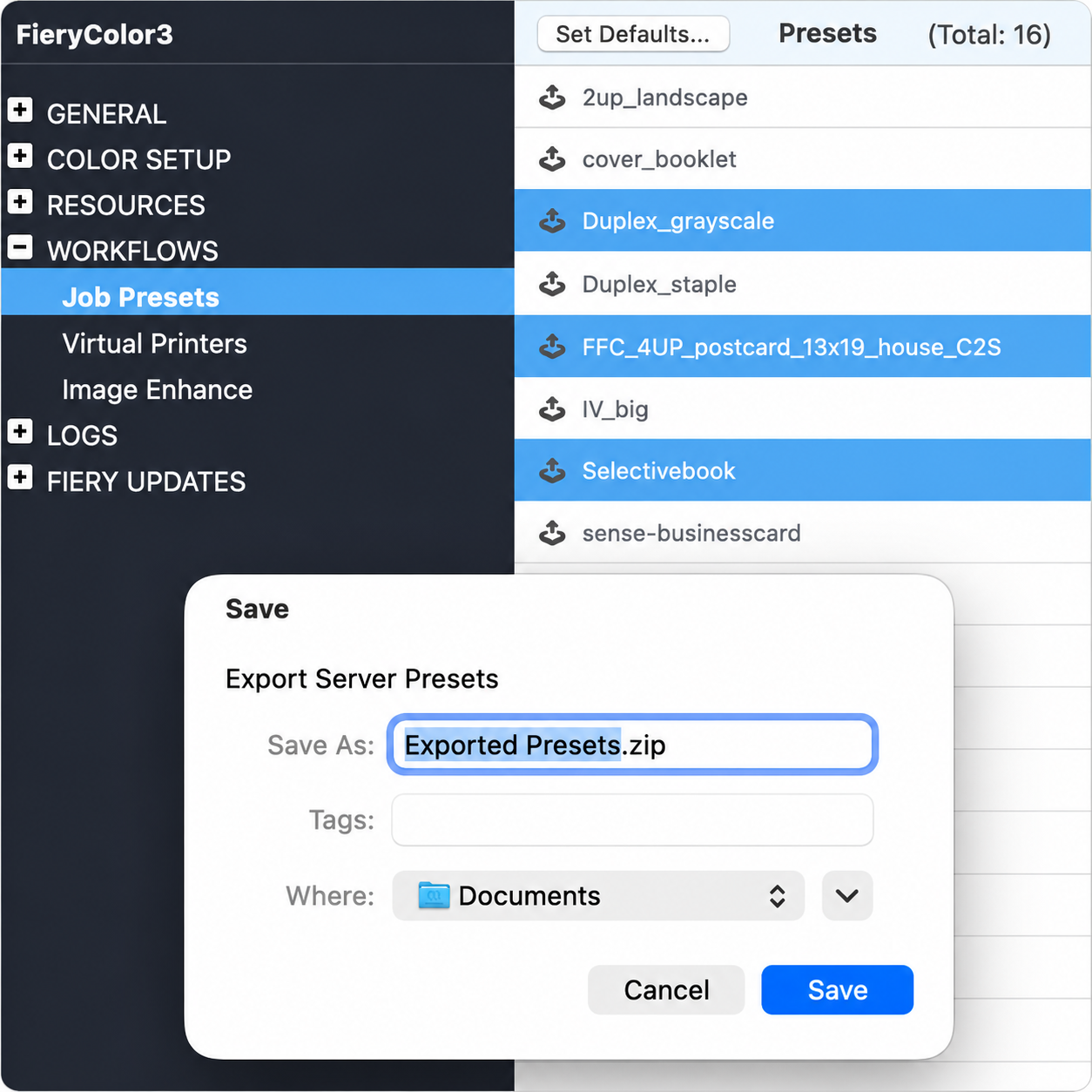
You can also continue to import preset packages created with earlier versions of Fiery Command WorkStation. Command WorkStation 7.3 and later supports importing legacy FJP preset packages as well as the new ZIP packages. This backward compatibility allows you to continue using existing preset packages while taking advantage of the enhanced export functionality.
Key benefits
- Quickly select only the Job Presets you want to export or manage
- Include both user-created and default presets in export packages
- Reduce unnecessary presets in exported packages
- Minimize duplicate presets when importing
- Maintain compatibility by importing legacy preset packages
Note that .zip preset packages exported from Command WorkStation 7.3 and later cannot be imported into Command WorkStation 7.2 or earlier.
Watch the what’s new video
Fiery Save as Server Preset by default
You can now save shared presets more easily in Job Properties. If you have the privilege to create Server Presets, Server Preset is automatically selected when you open the Save Preset dialog. This means you can save a preset for use by everyone who accesses the Fiery server without having to manually change the preset type.
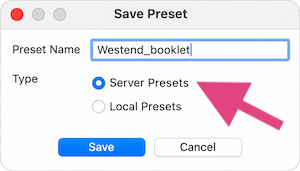
If you do not have the privilege to create Server Presets, Local Preset remains selected by default, as before. Server Preset is unavailable unless you have the required privilege.
Your preset options are based on the privileges assigned to your user account rather than simply on your role. This ensures that if your administrator grants you the privilege to create Server
Presets through the Configure tool, you automatically have the appropriate Server Preset options.
With this improvement, you can create and share server-wide presets with fewer clicks, while users who save presets locally continue to have the same experience.
Watch the what’s new video
Fiery Impose variable data finishing support
You can now use Fiery Impose to automate advanced finishing setup for variable data print (VDP) jobs.
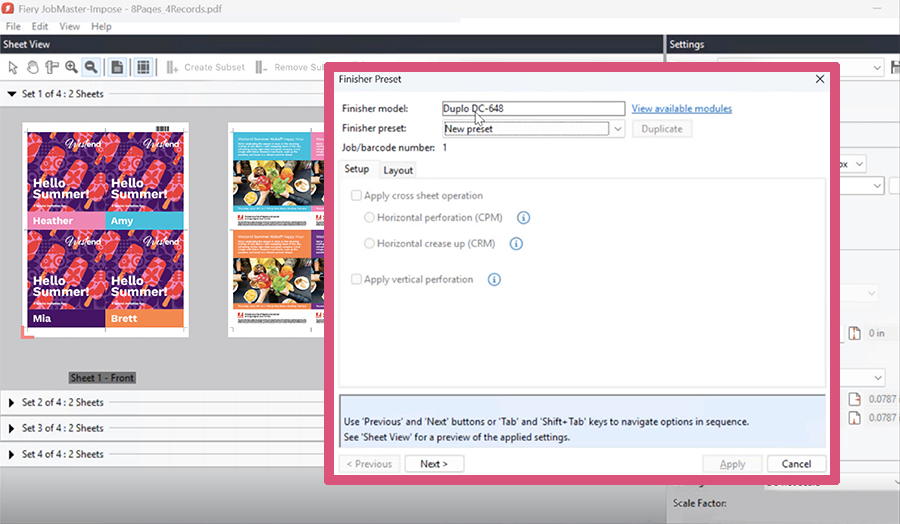
Previously, PDF/VT and FreeForm Create (.ffp) jobs could not take advantage of the same advanced finisher-template workflows available for conventional print jobs. Now, you can apply existing finisher templates or presets to supported VDP jobs.
When you select a finishing template, Fiery Impose automatically creates the correct imposed layout and adds the required finishing marks, such as cut, crease, perforation, and barcode marks, for the supported finisher. This reduces manual setup, improves consistency, and helps ensure personalized jobs are finished accurately and efficiently.
With automated finishing setup for VDP jobs, you can streamline production, reduce manual touchpoints, and minimize setup errors.
Key benefits
- Prepare supported VDP jobs for finishing with less manual setup
- Improve finishing consistency for personalized print applications
Fiery FreeForm Create 2.5
Fiery FreeForm Create is a free, stand-alone variable data creation application. You can quickly and simply add personalized elements like text, images, and barcodes to files in just a few clicks.
Version 2.5 helps you reduce setup time, simplify everyday design tasks, and create personalized communications more efficiently and confidently.
New features for all users include:
- Dark mode
- Refreshed interface
- Multiple master files
- Custom guidelines
- Style Manager enhancements
- Paste to odd or even pages
- Expanded spot color support
- Usability improvements
- Inline rich text editing
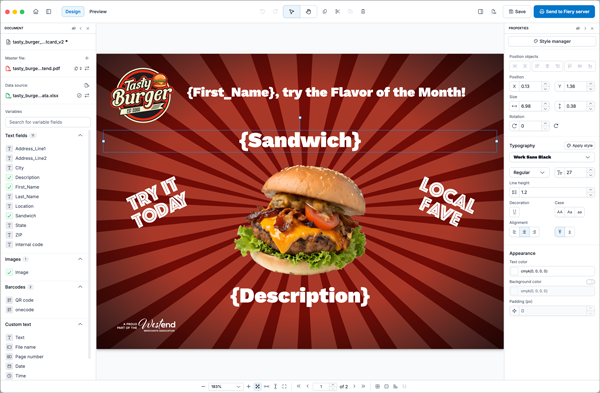
Learn more about what’s new in Fiery FreeForm Create 2.5.
Fiery FreeForm Create can be downloaded from Fiery Software Manager.
Watch the what’s new video
Changed or removed functionality
Discontinuation of Fiery Acrobat kit activation on macOS
Beginning with Fiery Command WorkStation 7.3, you can no longer activate the Fiery Adobe Acrobat Kit options on macOS. This change only applies to the legacy Fiery Acrobat Kit options (Acrobat Pro 2020 and Acrobat Pro 2017/PitStop Edit 2019) and does not affect separately licensed Adobe Acrobat subscriptions.
This change removes legacy Adobe licensing components that depend on Apple Rosetta 2, helping Command WorkStation maintain compatibility with future macOS releases on Apple silicon systems. Fiery Acrobat Kit activation and deactivation on Windows are unchanged.
If you have a Fiery Acrobat kit license activated on macOS, you will see a warning during upgrade that the Fiery Acrobat kit is no longer supported in Command WorkStation 7.3 for macOS. Your activated license remains visible, and you can still deactivate it to recover the license for use on a Windows computer.
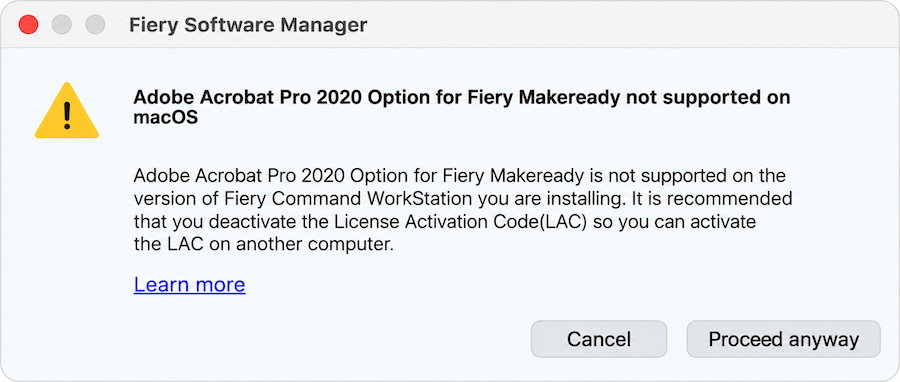
If you need to deactivate a Fiery Acrobat Kit license on macOS, you will be directed to download the Acrobat Kit Deactivation Helper from the Fiery Download Center. This helper provides the components required to complete the license deactivation process.
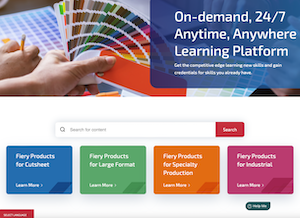
Fiery Learning
Free learning resources
Fiery Learning delivers educational resources that best fit your needs, using a variety of free, self-paced, web-based courses; videos; or hands-on, practical guides that make it easy to fit training into a busy schedule.
- eLearning courses: interactive online learning sessions
- Simulation learning: learning solution that offers the opportunity to practice techniques and procedures in a realistic, immersive environment
- Express videos: short videos on key topics, delivered by Fiery subject-matter experts
- Webinars: access to recordings of World of Fiery webinars, an on-going program of educational, free webinars that feature valuable information for color professionals, and owners and managers of print businesses or in-plant/CRD operations
- How-to guides: step-by-step instructions with sample files
Fiery certification programs
In today’s fast-changing world, print professionals need a convenient and affordable way to gain new skills and credentials quickly — so you can do more, be more, and take your career to the next level. Be a step ahead of the others. Our paid certification programs will help you stand out in the workplace.
Fiery Cutsheet Foundations Certification
Your gateway to mastering the basics of Fiery technology and the digital front end in the print industry. Created especially for beginners, these courses build your confidence step by step, from setting up your Fiery Command WorkStation to understanding fundamental color management principles.
Fiery Professional Certification
The Fiery Professional Certification teaches you the necessary skills to optimize the performance of your Fiery technology solutions. Developed by Fiery subject-matter experts, it provides the latest information on Fiery technology to develop employee skills, enhance professional development, and transform your print business.
Fiery Expert Certification
The Fiery Expert Certification builds on the Fiery Professional Certification to develop more in-depth expertise. The expert courses help you master the advanced Fiery toolsets and learn to use the full range of features.
Fiery Technician Certification
The Fiery Technician Certification program equips you and your service technicians with the knowledge and skills required to optimize the performance and maintain your Fiery technology and solutions.
For more information on the Fiery certification programs and to enroll, visit this web page.
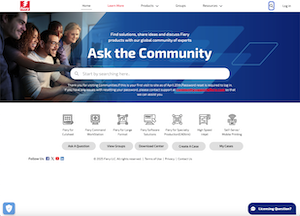
Fiery Communities
Fiery Communities brings you together with other Fiery users, experts, and support resources in one place, making it easy for you to find answers, exchange best practices, and discuss Fiery products.
Fiery Communities also offers you additional great features:
- A searchable knowledge base of technical articles created by the Fiery Technical Support team, for solutions to common or known issues.
- The ability to “follow” topics that interest you, or on specific areas of focus.
- A personalized feed which is created dynamically, based on your previous activities on the site.
- The ability to select the “best” answer from multiple solutions.
- Fiery Licensing Assistant, an automated chat option designed to quickly help you with licensing-related questions.
Additional resources
Use this list of sales, training, and technical resources to help you broaden your knowledge of Fiery Command WorkStation, plus related products and applications.
Fiery Command WorkStation main webpage | |
Fiery Command WorkStation download | |
Fiery Impose demo mode | |
Fiery JobMaster 30-day free trial request | |
Fiery Compose 30-day free trial request | |
Fiery ColorGuard 30-day free trial | |
Fiery Graphic Arts Pro Package 30-day free trial request (FS400 Pro and newer external Fiery servers) | |
Fiery ColorRight Package 30-day free trial request (FS400 Pro and newer embedded Fiery servers) | |
Fiery Automation Package 30-day free trial request (FS400 Pro and newer embedded Fiery servers) | |
Fiery JobFlow 30-day free trial request | |
Fiery JobFlow Pro 30-day free trial request | |
Fiery Scribe 30-day or 60 processed jobs free trial request (FS500 Pro and newer Fiery servers) | |
Fiery makeready solutions comparison (Fiery Impose, Compose, and JobMaster) | |
Fiery FreeForm Create page (download Fiery FreeForm Kit, access product information and demo videos) | |
Training resources at Fiery Learning | |
Fiery Communities | |
Fiery Command WorkStation Help documentation |